
Web app
Your organization's inbox, timeline, projects, chat and settings in the browser, plus share links, invite links and device sign-in.
The web app at app.tryatlas.cc shows your synced organization in a browser. It reads the same record the desktop app writes: every session synced to a cloud project, every comment, every conversation. It doesn't run coding agents.
Use it to catch up without opening the desktop app, to manage the organization, or to bring in teammates who don't write code with agents themselves.
Sign in
Sign in with Continue with Google or Continue with GitHub, using the same account as the desktop app. You land on your inbox.
If you belong to several organizations, switch between them from the switcher at the top of the sidebar, or press 1 to 9. Press ⌘K to jump to anything, and ? for every keyboard shortcut.
The sidebar holds:
- Dashboard, Inbox and Members
- under Organization: Timeline, Projects, Chat, ROI for admins and product owners, and, where they're turned on, Atlas and Remote control
- Quick chats and Recent: your latest conversations and sessions
- under Account: My Account, which opens to Usage, AI, Shared links and Account Settings
Inbox
The inbox collects what needs you: someone mentioned you in a comment, replied to you, or commented on a session you recorded. Filter it to All, Unread or Mentions, and use Mark all as read to clear it. Select a notification to open the session at the comment.
Email notifications
When you're away, Atlas batches notifications into one email every few minutes. Choose what it sends in Account Settings, under Email notifications:
- Mentions in a channel
- Direct messages, including groups you are in
- Missed calls you were rung for
- Comments on sessions: mentions, replies and comments on your sessions
Email me turns all of it off or on at once. Quiet hours holds email overnight and sends it in the morning.
Dashboard
The dashboard is a summary of the organization over the last 24 hours, 7 days or 30 days:
- usage figures for the range
- Activity: sessions, checkpoints and people across the organization, updating live
- Members: who is in the organization and who is online, with a quick way for admins to invite
- Recent sessions: running sessions first, then the rest, newest first
Timeline
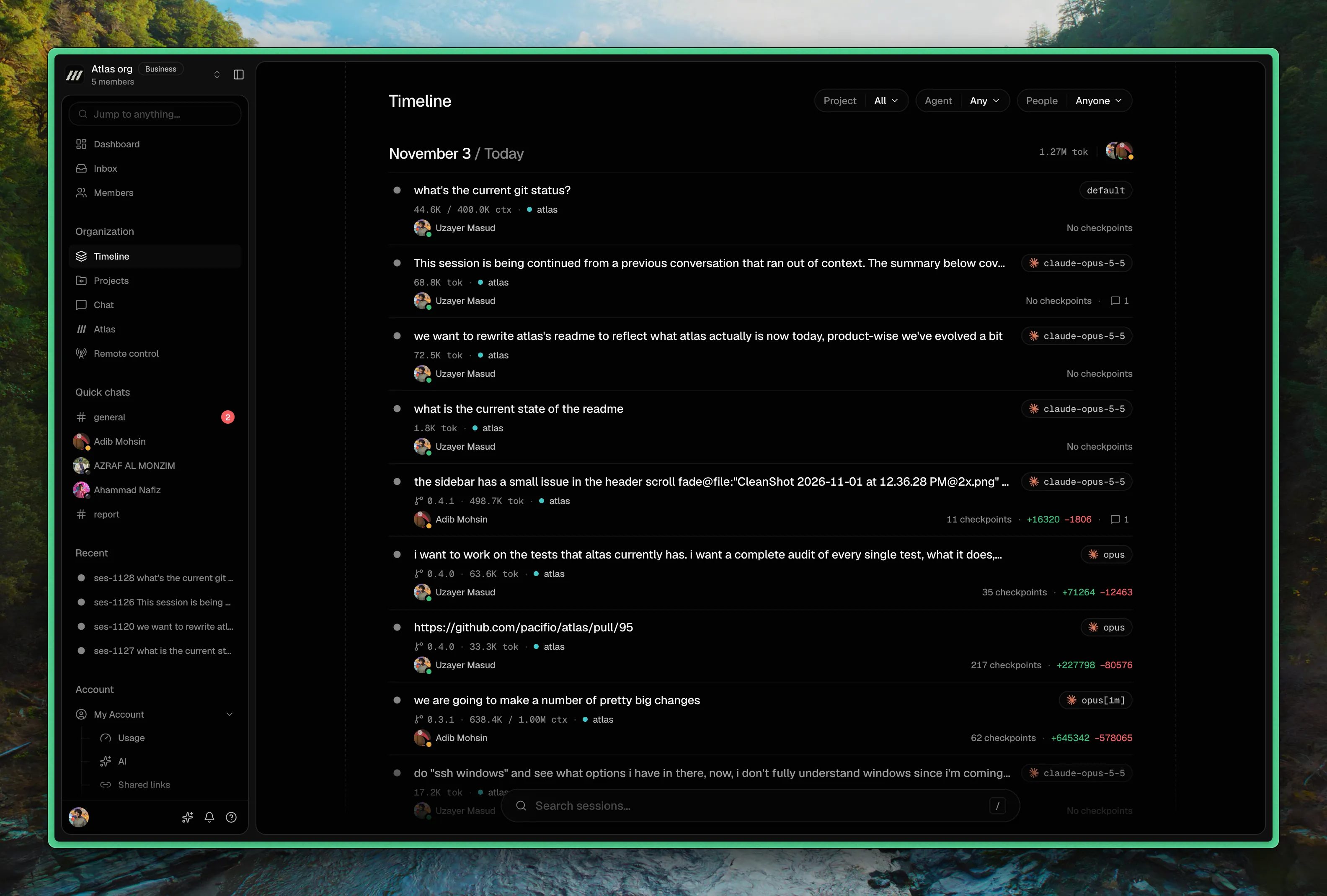
The web timeline is the same board as the desktop timeline, across every cloud project you can read. Narrow it with Project, Agent and People.
Search goes deeper here than on the desktop. Press / or type in Search sessions… to search titles, prompts, responses, tool calls and checkpoints. While searching, When limits results to the past day, week, month or 3 months, and Kind limits them to one kind of match.
Open a session to read its prompts, responses, thinking, tool calls and checkpoints, and to read and add comments. From a session you can also share it. The organization's owner can delete a session from here, which erases it for everyone.
Projects
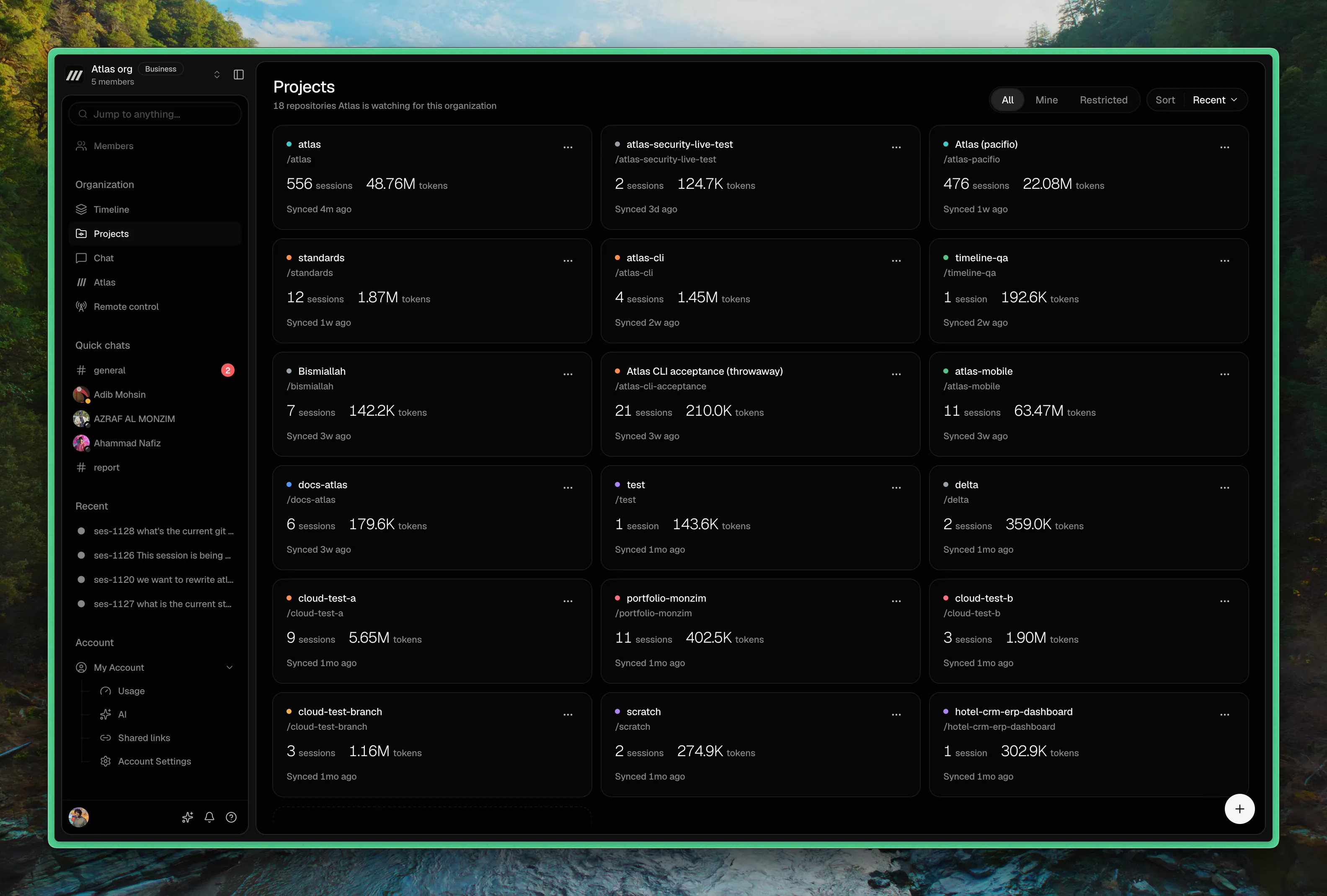
Projects lists the organization's cloud projects, the repositories Atlas is watching for the organization. Filter to All, Mine or Restricted.
New project creates a cloud project from the web. It opens a drawer with three steps:
- New project: a name and a slug.
- Details: an optional Repository URL, and Restrict to named members.
- Review: check it, then select Create project.
Teammates then connect their checkouts to it from the desktop app.
A project's page shows its recent activity and usage, its Shared threads, its Members, its Shared links, and About: the Repository and Root commit the desktop matched it on. A restricted project is visible only to the members named on it.
Chat, calls and Spaces
Chat is the same team chat as the desktop app: channels, direct messages and group DMs.
Calls are held in the browser. When you start or join a call from the desktop app, it opens here. Spaces and shared threads open in the web app too. Shared threads have no sidebar item: open a project under Projects and look under Shared threads.
Atlas
Atlas, your organization's own agent, lives in the web app. Open it from Atlas in the sidebar, or press ⌘J on any page to ask about what you're looking at. Its Facts, Activity and, where they're on, Loops are on the Atlas page.
Settings
Organization settings are under Members in the sidebar, and your own under Account, My Account.
- Organization: the name, logo and URL slug; members and invitations; invite links; leaving or deleting the organization. Admins change these.
- Usage: what the organization has spent, per person. See AI access & spend.
- AI: the default model, which models are on, and the budget, which is read-only and set by your plan. See AI access & spend. Where Atlas is on, this is also where an admin switches it off and where you see what Atlas remembers about you.
- Sharing: the organization's sharing policy and every public link.
- Account: your profile, sign-in methods, appearance, email notifications, an access token for scripts, and your active sessions. See Your account.
- Privacy: prompt capture for admins, and Share my activity. With it on, people in your organization see the page you have open and your latest session. With it off, they see only whether you're online and when you were last active.
Share a session publicly
Open a session and select Share session. Choose who it is for:
- Atlas org copies a link to the session in the web app. Only members of the organization can open it.
- Anyone creates a public link to a read-only copy of the session.
A public link can carry a password, and you decide whether guests may comment. People who open it see "Shared from <organization>", and can comment if you allowed it and they give a name. From the share panel you can copy the link or send it as an email, a GitHub or X post, a Markdown link or an embed. Stop sharing at any time; the link closes at once.
Share a whole project the same way with Share project on its page.
Admins set the rules in Sharing, under Policy:
- Allow public share links: whether members can publish public links at all.
- Require a password: every new public link needs one.
- Allow guest comments: people without an account can comment on a link whose owner allows it.
Shared links lists every public link: admins see the whole organization's, everyone else the ones they created.
Join with an invite link
An invite link opens a Join page in the web app. Sign in, then select Join <organization>. If the link has expired, been revoked or been used up, the page says so. Admins create invite links; see Share an invite link.
An email invitation works the same way: its link opens the web app, where you accept it.
Approve a desktop sign-in
When you sign in from the desktop app, it opens the Connect desktop page here. Sign in if asked, paste the code from the desktop app into Device code, and select Approve. Select Deny if you didn't start the sign-in. See Your account.
Next
- Timeline: the same record in the desktop app
- Members & roles: invite people
- AI access & spend: budgets and usage