
Team chat
Channels and direct messages for your organization, with agent sessions one click away.
Team chat is your organization's messaging, inside Atlas: channels, direct messages and group DMs. It is where you talk to teammates, and where a recorded agent session can be dropped into the conversation so everyone opens the same record.
Team chat is not the same as an agent session. A session is you working with an agent in a project. Team chat is people talking to people across the organization. It opens as a Team chat tab in the surfaces pane, beside the session.
Open team chat
Press ⌘⇧C, click Team chat at the bottom of the sidebar, or click the team chat button in the session's header. Do the same again to close it. ⌘T then C also opens it. A dot on Team chat at the bottom of the sidebar means a conversation has unread messages or mentions you.
There is one team chat per window. It stays open when you switch projects, and if it was open when you quit Atlas, it opens again next time. Its column can't be made narrower than 320px.
Team chat needs you signed in and a synced organization, because there is no server to talk to otherwise. Until then, Team chat stays at the bottom of the sidebar, greyed with a lock:
- Signed out, they say Sign in to unlock team chat (or members). Click either one to start signing in.
- In a local organization, they say to sync the organization to unlock them. See Turn on sync for a local organization.
The same conversations are in the web app at app.tryatlas.cc, and messages arrive live in both.
Find your way around
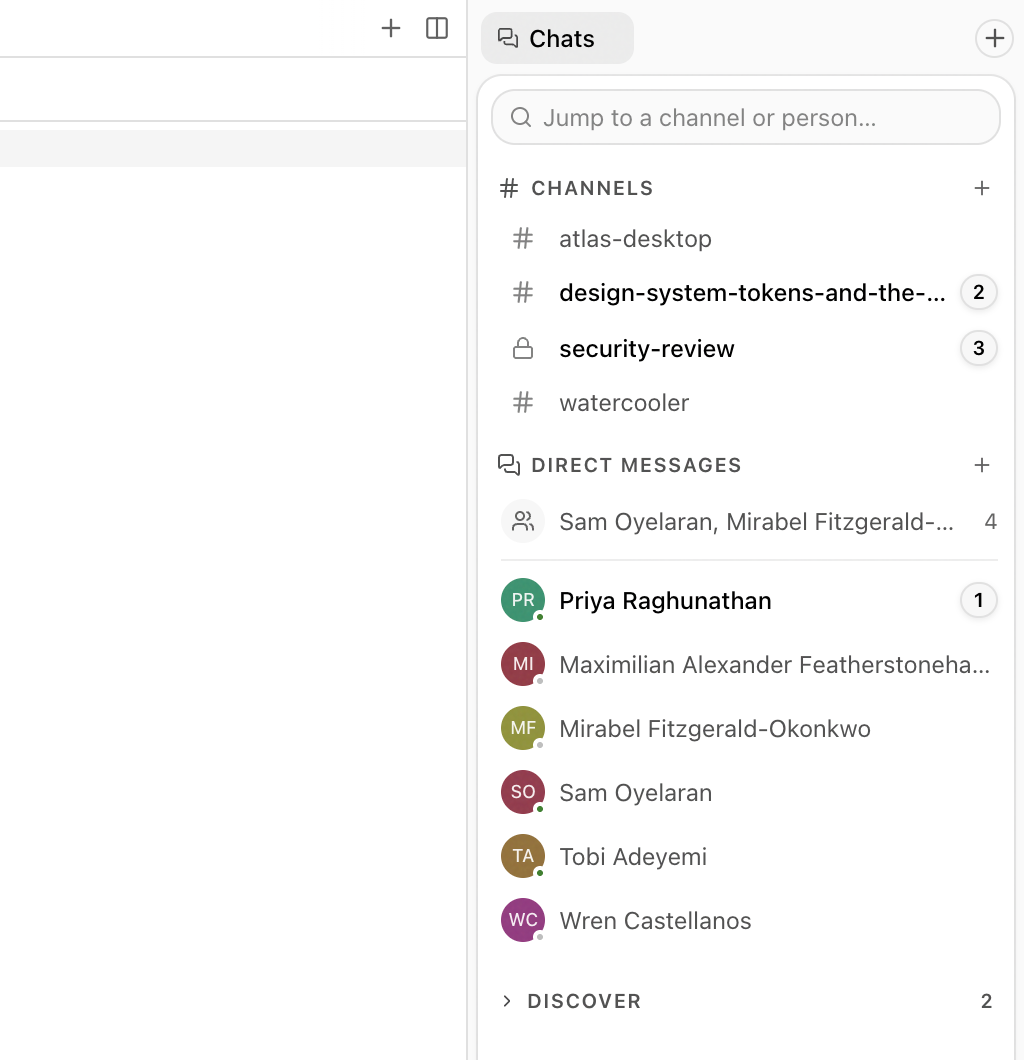
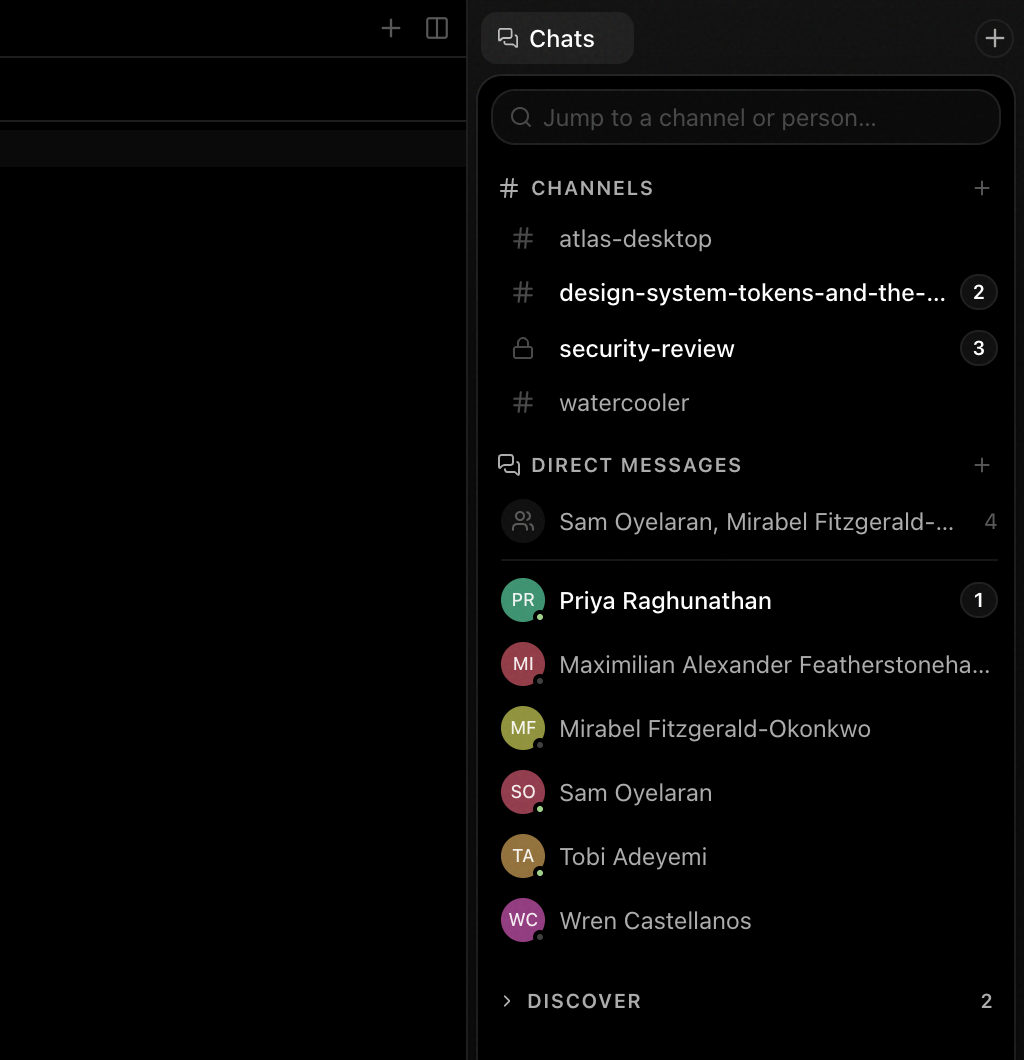
The home view lists every channel you are in, then your direct messages, then the rest of your teammates. Type in Jump to a channel or person… to filter all three.
Click a channel or a person to open the conversation. Click the back arrow to return to the home view. To keep several open, for example a channel you are watching and a DM you are answering, ⌘-click a conversation to open it in a tab of its own. Once two or more are open, they show as tabs under the column's tab strip.
Public channels you haven't joined are under Discover at the bottom of the home view. Expand it and click Join.
Channels
Click + beside Channels, type a name, and choose whether it is Private.
- Public channels are visible to everyone in the organization. Anyone can be invited, and a new member sees the full history.
- Private channels are visible only to their members. An organization admin cannot read a private channel they are not in.
Members can rename a channel: hover its name in the conversation header and click it.
Direct messages and group DMs
Click + beside Direct messages and pick one person for a DM, or several for a group DM. Clicking a teammate on the home view opens your DM with them, creating it if needed.
A group DM's membership is fixed. To add someone, start a new group with everyone in it.
Write messages
The composer takes Markdown. Its toolbar has bold, italic, strikethrough, code, links and lists, plus an emoji picker.
- Click the paperclip to attach files, up to 10 per message. You can also drop or paste them into the composer.
- Click @ or type
@to mention a teammate. A mention notifies them. - A message holds up to 16 KB of text. A paste of more than 4,000 characters or 80 lines is attached as a text file instead.
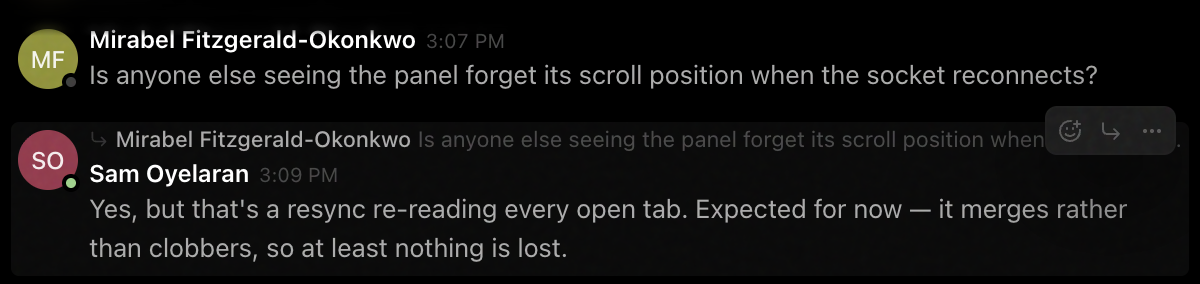
Hover a message for its actions:
- React with an emoji.
- Reply to quote the message in your next one. Replies stay in the main conversation; there are no separate thread panes.
- More to copy the text, Pin for everyone, or edit and delete. Only the author can edit a message. The author or an organization admin can delete it.
Pins and files
Pins are shared: anything one person pins, everyone sees. When a conversation has pins, a pin count appears in its header. Click it to search the pinned messages and jump to one.
Under the conversation header, the Files tab gathers the images, video, audio and documents shared in the conversation. Click an image or video to open it full size.
Session references
A message can carry a reference to a recorded agent session, or to one checkpoint inside it. It shows as a card with the session's title, agent and changes. Click the card to open that session on the timeline, even if a teammate ran it on their machine.
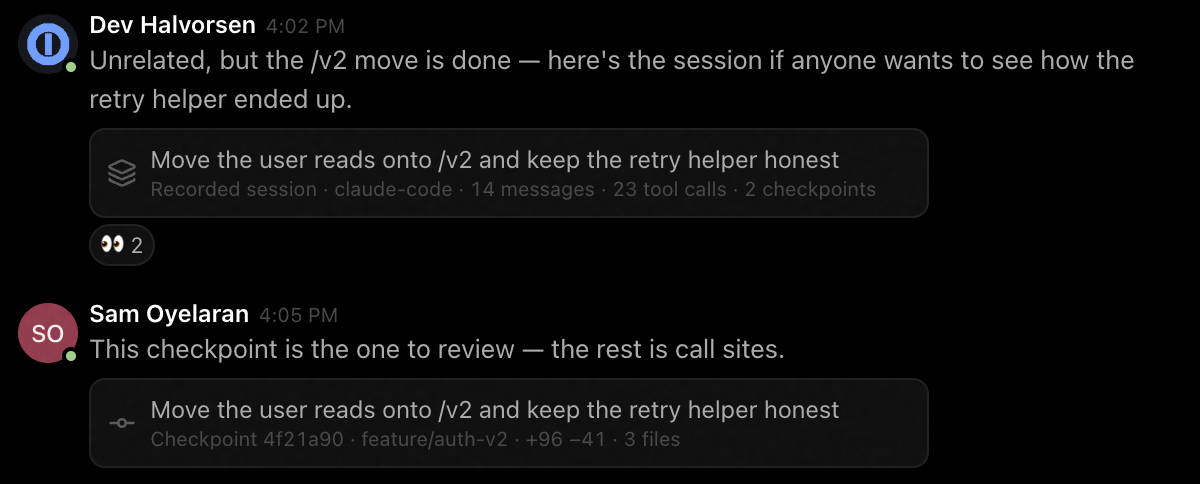
There are two ways to add one:
- In the web app, click Reference a session in the composer, find the session, and pick the session or one of its checkpoints. A message carries up to three.
- From Atlas Agent, ask it to post about a session, for example "send a summary of this session to #releases". Atlas Agent asks you before it sends anything. This needs Let Atlas Agent act in your organization turned on.
In the desktop app you can't attach a session card to a message yourself. Cards from the web app or from Atlas Agent show there, and click through like anywhere else. Pasting a session link into a message sends a plain link, not a card.
References only work for projects visible to the whole organization. A restricted project's sessions can't be referenced.
Search
On the desktop, the search box on the home view finds channels and people. To search the text of messages, use Search messages in a conversation's header in the web app.
Notifications
Atlas sends a desktop notification when someone sends you a DM or group DM message, and when someone mentions you in a channel (including @channel and @here). Click the notification to open the conversation. Turn either kind off under Notifications in Settings.
Post from CI and other tools
An incoming webhook gives a channel a secret URL that outside systems can post to. Use one to have CI report a failed build, a deploy script announce a release, or a monitor raise an alert in the channel where the team will see it.
Webhook messages show live, count as unread, can mention people, appear in search, and are marked as coming from an integration rather than a person.
To create one:
- Open the channel in the web app.
- Open the conversation menu (⋯) and choose Integrations.
- Name the webhook, for example "Deploys", and create it.
- Copy the URL. It is shown only now and when you regenerate it, so store it as a secret in your CI.
Post JSON with a content field (a text field also works, so most Slack and Discord integrations work by changing the URL):
curl -X POST "$ATLAS_WEBHOOK_URL" \
  -H "Content-Type: application/json" \
  -d '{"content": "Build #482 failed on main", "username": "CI"}'
To attach files, send multipart/form-data, up to 10 files and 25 MB in total.
Organization admins and the person who created the channel manage its webhooks: rename them, give them a picture, regenerate the URL, disable them without deleting, or delete them. Webhooks work in channels only, not in DMs.
Next
- Calls: talk instead of type
- Prompt drafts: write a prompt together in a conversation
- Spaces: the shared canvas attached to every conversation