
Team overview
What changes when your organization is synced. A shared record of agent work, and the conversation next to it.
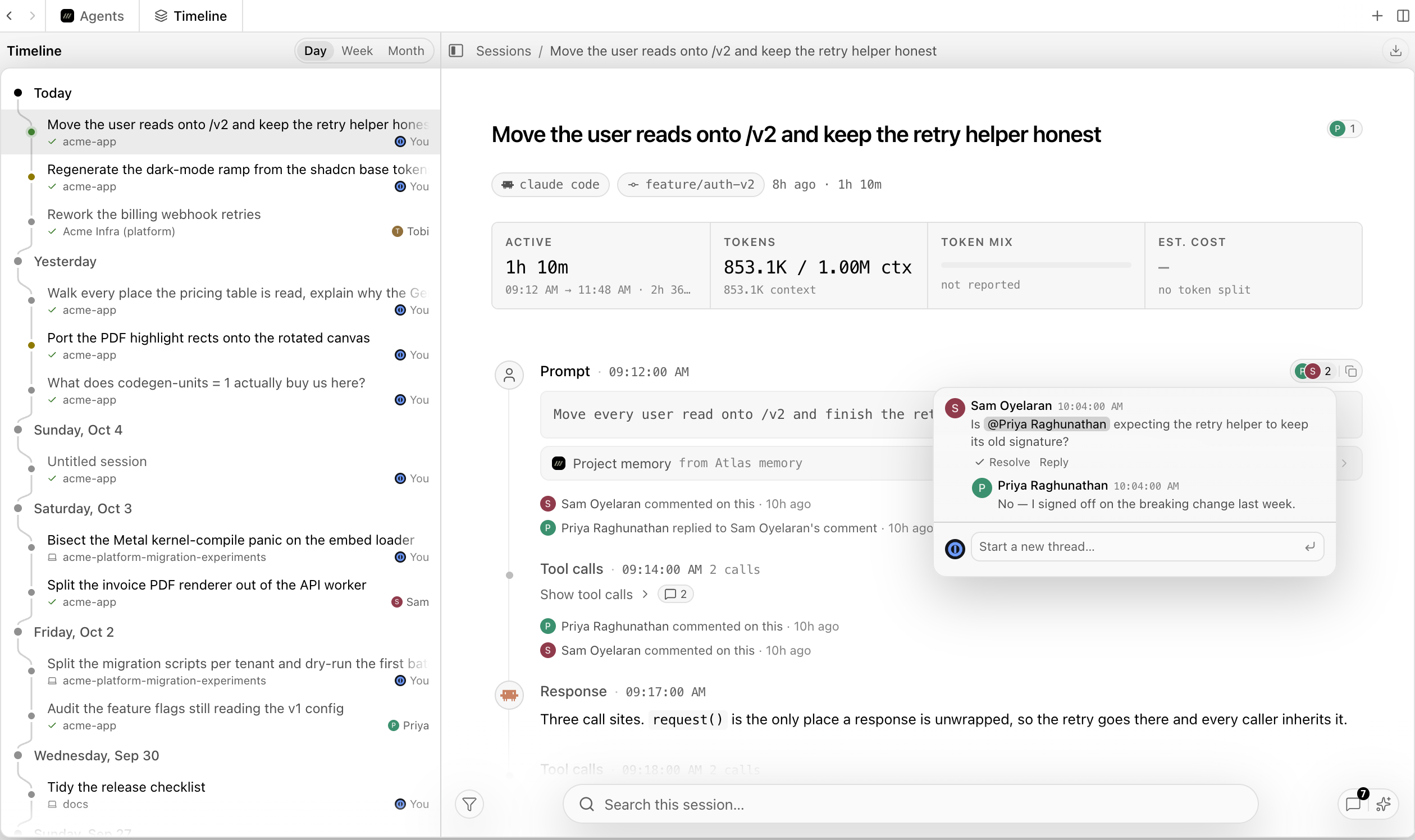
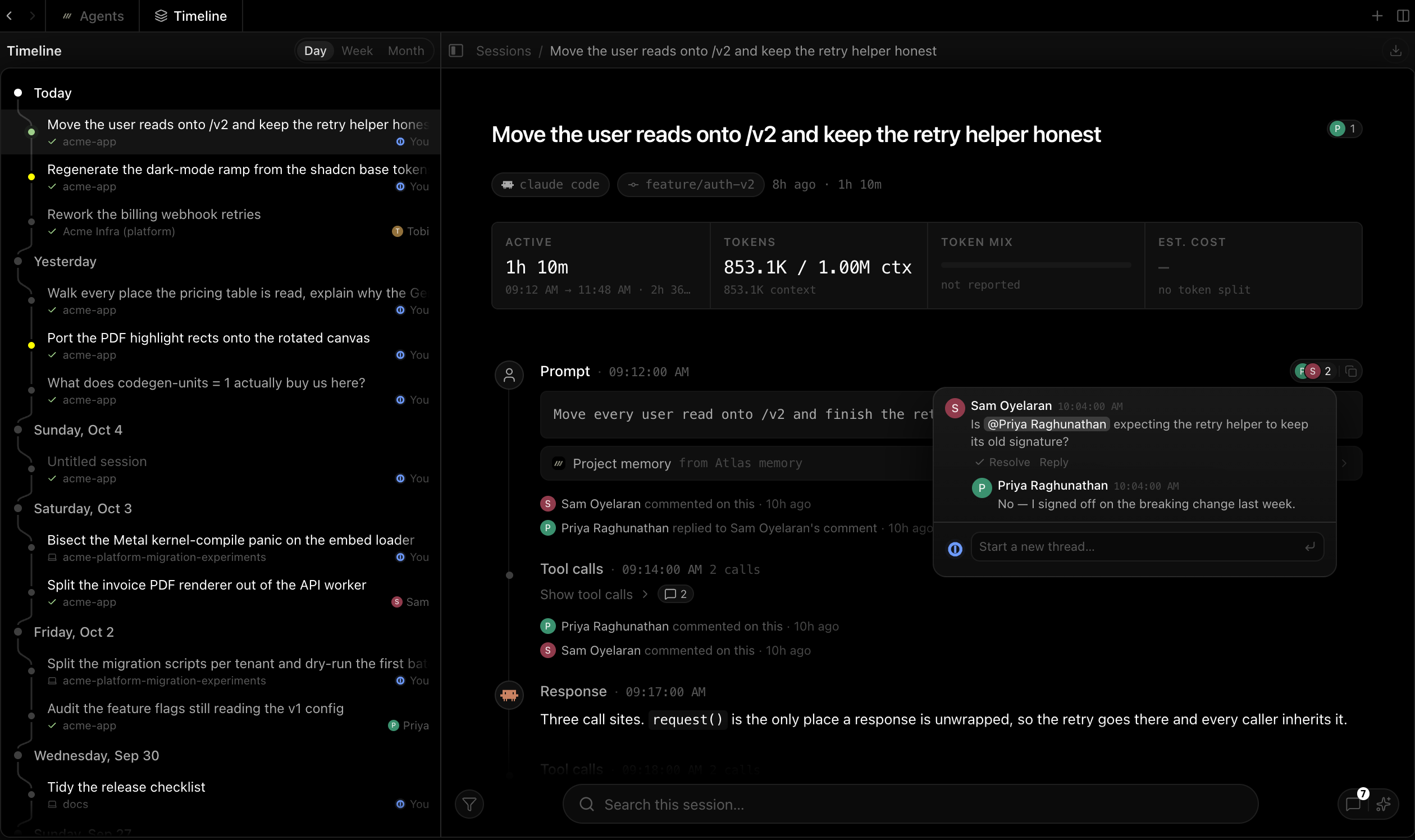
A test starts failing in a file nobody on your team remembers touching. In Atlas you open the timeline, filter to that project, and find the session whose checkpoint changed the file. You read the prompt your teammate gave their agent, the tool calls it made and the commit it produced. You leave a comment on the exact tool call that introduced the bug, and your teammate sees it in their inbox.
That is what multiplayer means in Atlas: every agent session your team runs is recorded, linked to the commits it produced, and readable by the rest of the team, with the conversation about the work sitting right next to it.
How the pieces fit
Organization. Everything shared belongs to an organization. A local organization lives on one machine. A synced organization lives in your Atlas account, has members and roles, and is what every team feature below needs.
Cloud projects. Each project you open can store its sessions locally or in the cloud. A cloud project belongs to the organization, and every teammate who connects their own checkout of the same repository adds their sessions to it. Your source code never syncs, only the record of agent work.
Timeline. The timeline is the board of every recorded session in the organization: yours, your teammates', and the ones running right now. Each session shows its prompts, responses, tool calls and the checkpoints that tie it to commits. Teammates comment on any step.
The conversation. Next to the work sit team chat, calls, co-written prompt drafts, Spaces and shared threads. A chat message can carry a reference to a session or checkpoint, so a discussion links straight back to the record.
Atlas Agent in the organization. Atlas Agent can read the organization's recorded sessions, comments, members and conversations, and act there as you. Ask it "what is Priya working on?" and it answers from the timeline. Anything that reaches another person asks you first.
Atlas, the organization's agent. Atlas answers questions about the team's work from the web app or the desktop app's Ask Atlas panel, without opening a project. It acts for you once you approve, keeps the team's confirmed facts, and runs loops on a schedule.
The web app. The web app at app.tryatlas.cc shows the same organization in a browser: inbox, dashboard, timeline, projects, chat and settings. Teammates who don't run the desktop app can still read and comment.
What stays on your machine
A local organization, and any project whose sessions are stored Local, never send anything to Atlas. Even in a synced organization, these stay local:
- your source tree and git history
- shared memory and the knowledge base
- sessions in projects you keep on Local
The timeline page lists exactly what a cloud project sends.
Get your team set up
- Sign in. Select your avatar in the top-right corner of the window, choose Sign in and connect your Atlas account with Google or GitHub.
- Create a synced organization. Open the organization menu from the organization name in the title bar, select Create organization… and choose Cloud. If you already work in a local organization, select Turn on sync for <name>… instead.
- Invite your team. Select Invite & Manage members in the organization menu and invite people by email, or create a multi-use invite link in the web app. See Members & roles.
- Put a project in the cloud. Open the project, press ⌘⌥C (or select the project name in the breadcrumb at the top of the session), choose Cloud and create the cloud project. Teammates open their own checkout of the same repository and choose Connect. See Session capture.
- Open the timeline. Select Timeline at the bottom of the sidebar. Your sessions and your teammates' appear as they are recorded.
- Turn on Atlas Agent. Atlas Agent needs AI access for the organization. If the composer says it doesn't have AI grants, see AI access & spend.