
Atlas CLI
Capture the agents you run in your terminal, sync them to your team's timeline, and give them one shared memory, without the desktop app.
The Atlas CLI is Atlas without the window. It's one command, atlas-cli, that hooks into the coding agents you already run in a terminal: Claude Code, Codex, Cursor, GitHub Copilot CLI, OpenCode, Factory Droid, Antigravity and Pi.
Each agent keeps its own interface and your own subscription. Atlas records every session as it happens, links the commits it makes, sends it to your organization's timeline, and gives every agent in the project one shared memory.
The CLI signs in with the same account as the desktop app and writes the same files in .atlas/. A folder works the same whether it's open in the app, in a terminal, or on a server you reach over SSH.
atlas-cli is not the atlas command the desktop app installs. atlas . opens a folder in the app; atlas-cli runs without it.
Install
The CLI runs on macOS (Apple silicon and Intel) and Linux (x86-64 and arm64). It is not available on Windows.
curl -fsSL https://github.com/tryatlas/cli/releases/latest/download/install.sh | shThe installer checks the download against the release's checksums and puts atlas-cli in ~/.local/bin. If that folder isn't on your PATH, it tells you. It needs curl or wget, tar, gzip and a SHA-256 tool, which macOS and most Linux systems already have.
To install somewhere else, or to pin a release, set ATLAS_INSTALL_DIR or ATLAS_VERSION for the sh that runs the script:
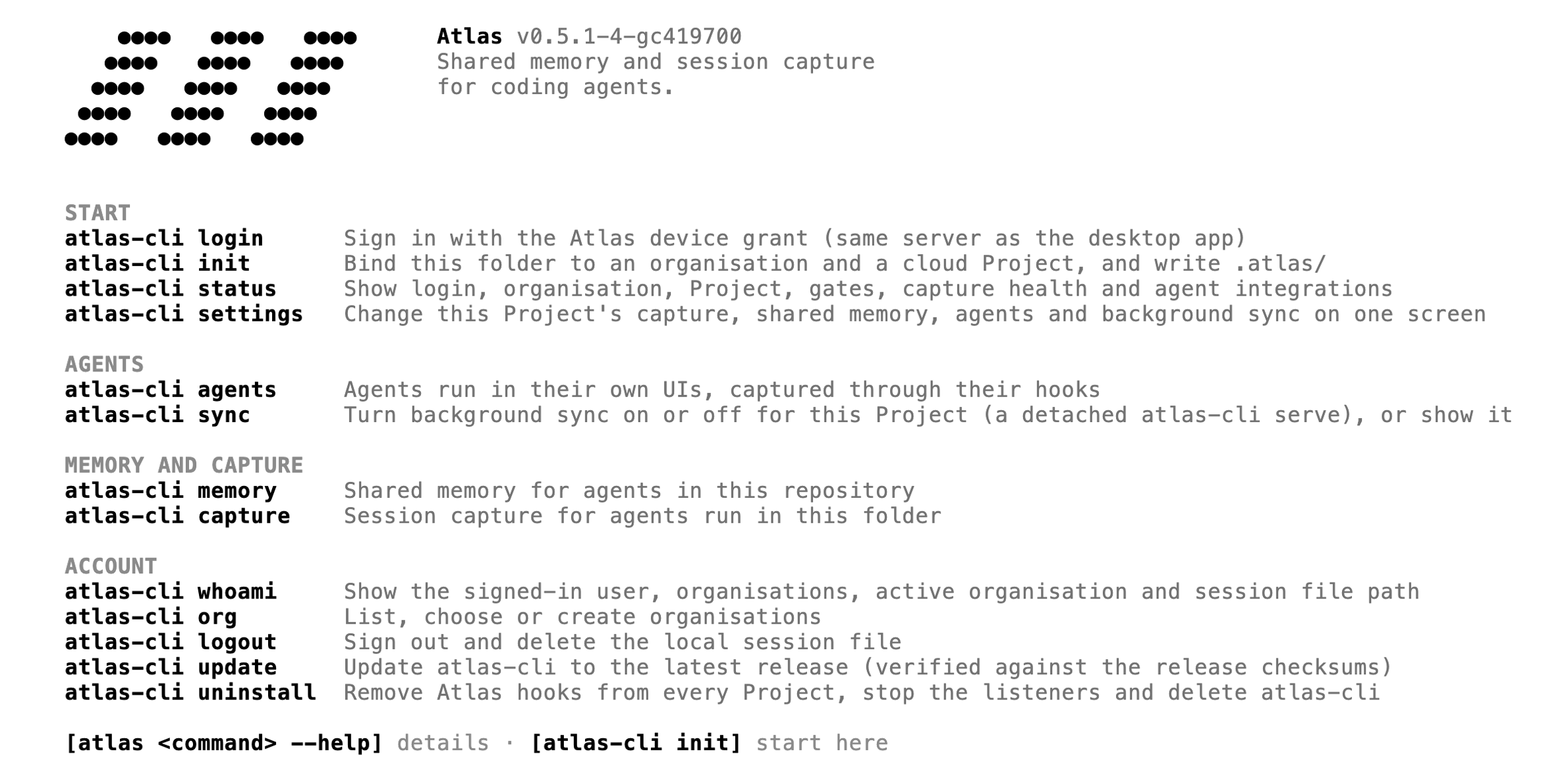
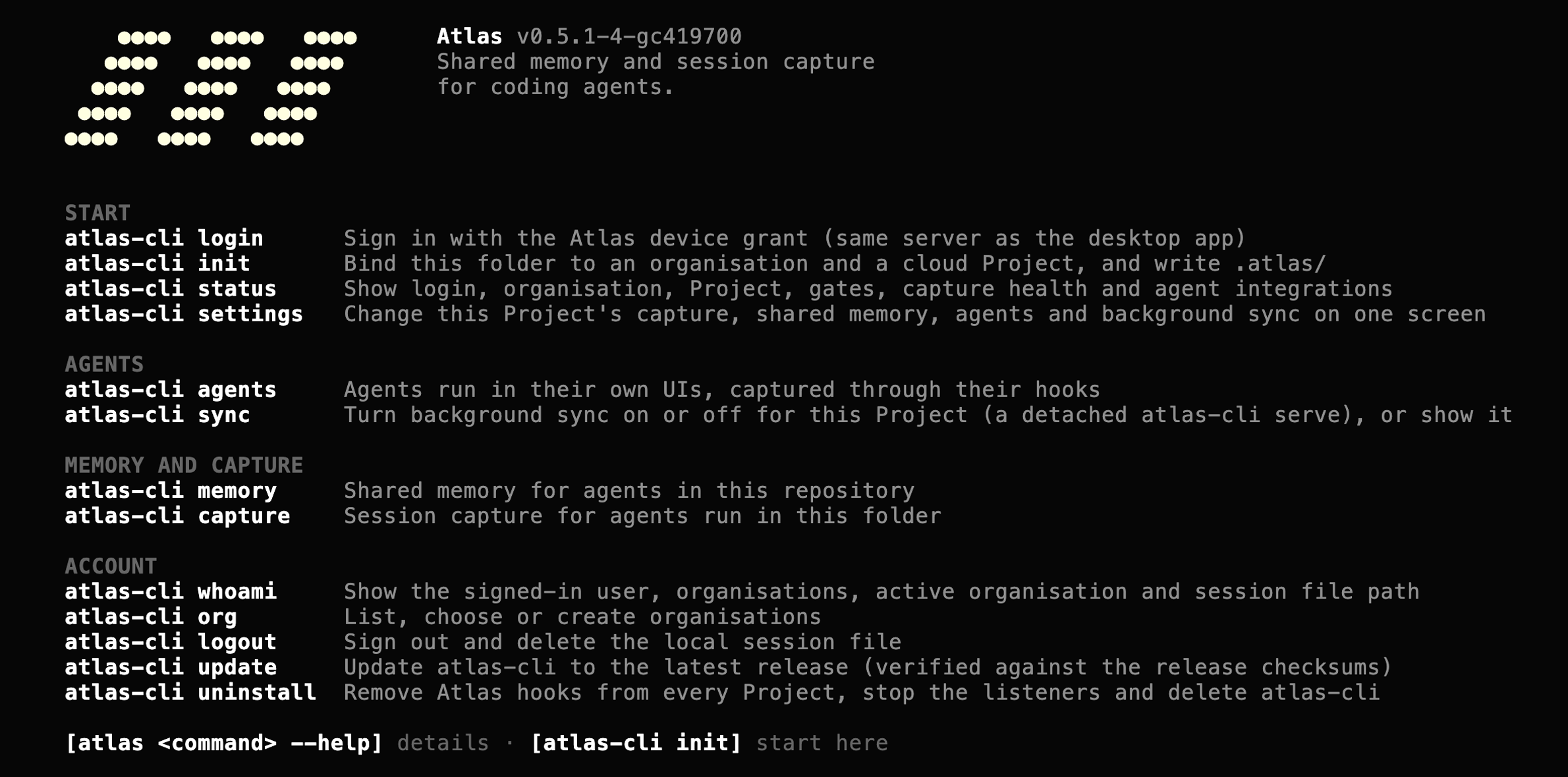
curl -fsSL https://github.com/tryatlas/cli/releases/latest/download/install.sh | ATLAS_VERSION=v0.5.1 shRun atlas-cli on its own to see every command, grouped. To update later, run atlas-cli update, or run the installer again: it replaces the binary in place.
Sign in
atlas-cli loginThe CLI shows a short code and opens your browser. Enter the code there (it's already on your clipboard), approve the device, and come back.
Over SSH, or on a machine with no display, it prints the address instead of opening a browser. Open it on any device. --no-browser does the same anywhere.
This is the same sign-in as the desktop app, stored in the same file. If you're signed in to one, you're signed in to both. atlas-cli whoami shows who you are and which organizations you belong to.
Set up a project
In the folder you work in, run:
atlas-cli initinit walks you through a few steps, one screen at a time:
| Step | What it asks |
|---|---|
| Organisation | Which organization the project belongs to. Skipped when you belong to one. |
| Project | Which cloud project to record into. The one that matches this repository comes first, then the rest of the organization's projects, then Create a new Project. |
| Agents | Which of the agents found on this machine to hook. All are ticked; untick the ones you don't want. |
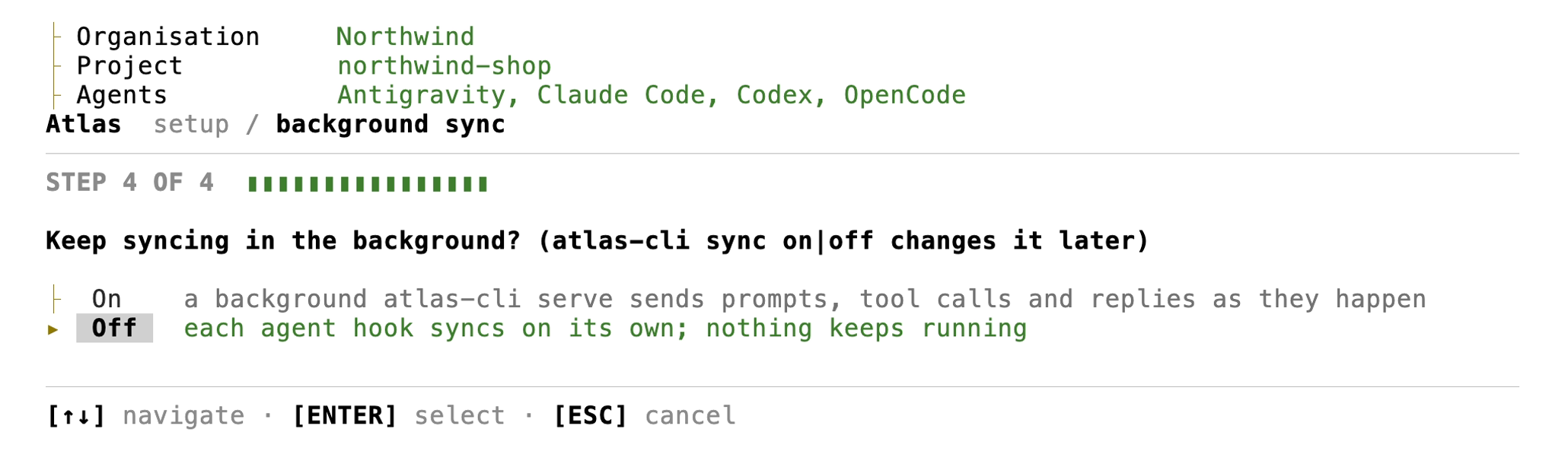
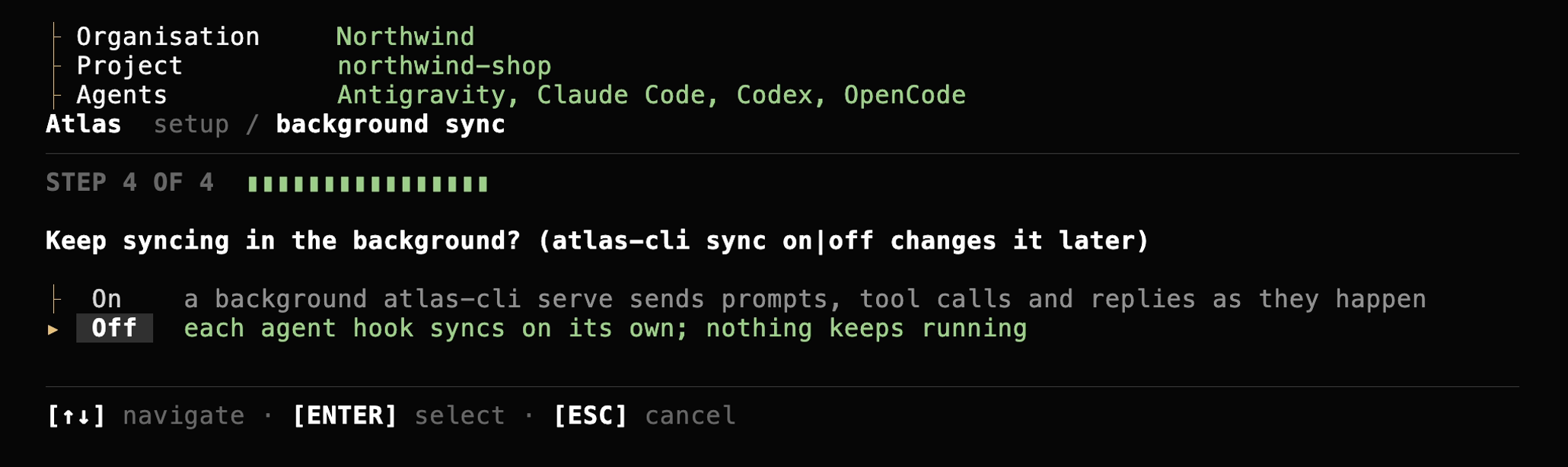
| Background sync | Whether to keep a small listener running that sends each event to the cloud the moment it happens. See How syncing works. |
| Memory search | Whether to download the 87 MB model that lets agents find memories by meaning. Only asked when it isn't on this machine yet. |
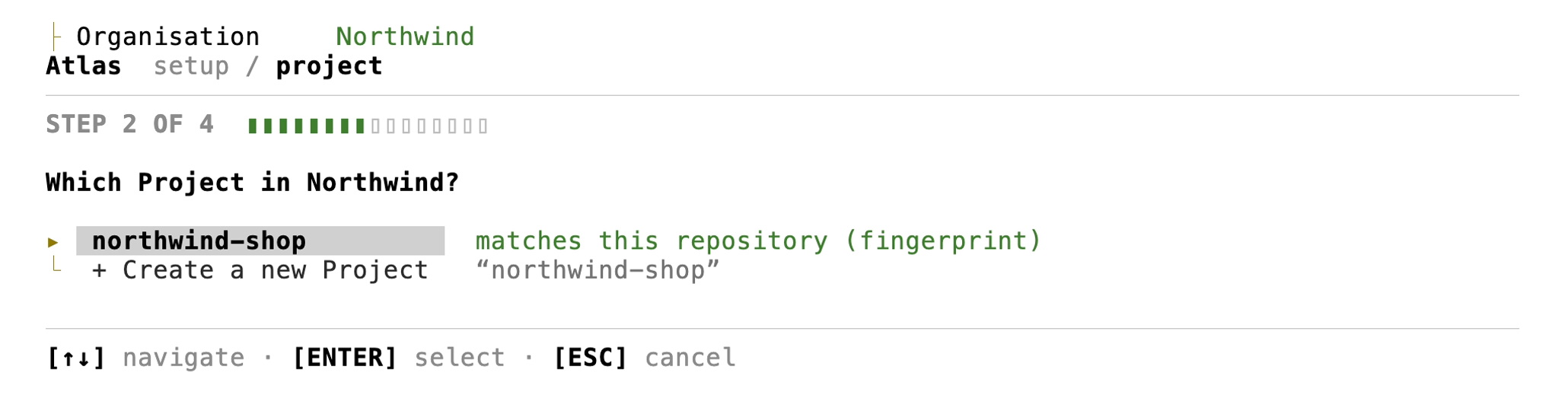
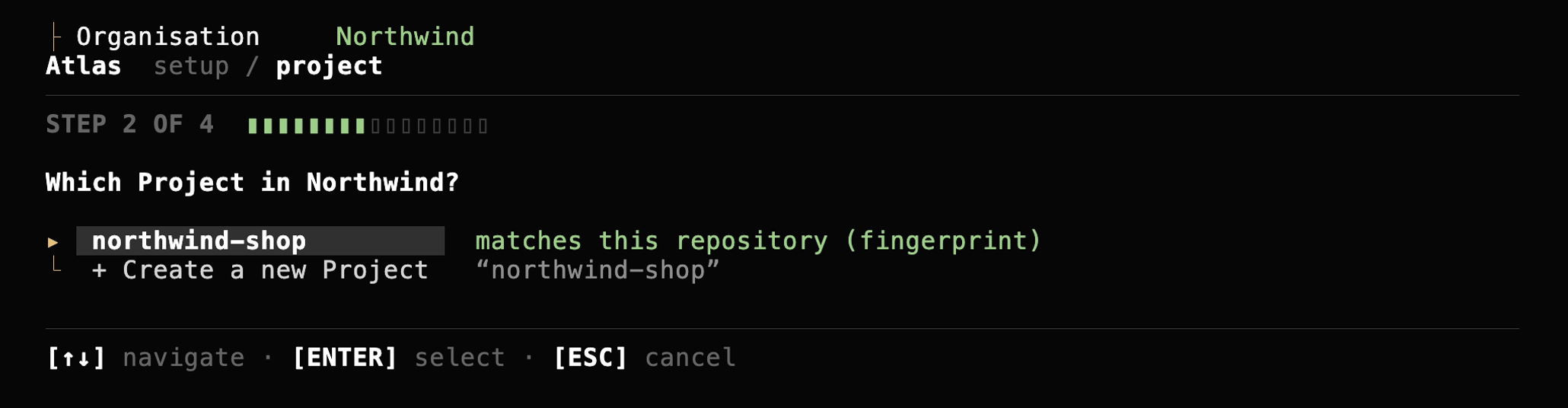
Picking an existing project is how you join a teammate's: their sessions and yours land on the same timeline. Projects are matched by the repository's first commit and its origin, the same way the desktop app connects.
When init finishes, the folder is a project with session capture on. The desktop app reads it the same way if you open it there later.
Keep a project on this machine
atlas-cli init --local records into .atlas/ and sends nothing. There's no organization or project step, and you don't need to sign in. Like the app's Local capture, it's a complete mode, not a trial.
If you run init while signed out, it offers Sign in or Set up locally.
When the desktop app has the folder open
Only one writer records a project at a time. If the folder is open in the desktop app, init stops and asks you to close it there first.
Run your agents as usual
Start your agent the way you always do:
claudeNothing is wrapped and nothing changes about how you launch it. Claude Code, Codex and Factory Droid show a line when a session starts, so you know Atlas is listening:
Atlas: capture on · memory on · northwind-shopThe last part is the cloud project's name, or local Project for a local one. The other agents start without a line. For any agent, atlas-cli agents list shows whether it's hooked in this folder.
Some agents ask you to trust the folder or approve the memory server the first time. See Agents.
What gets captured
Atlas records each session event by event, as the agent fires its hooks:
- The prompt opens a turn the moment you submit it.
- Each tool call is recorded as it finishes, with the files it wrote, including files a shell command changed.
- The reply closes the turn, with the model and its token usage.
- Each commit the agent makes, or you make afterward, links back to the session that wrote it, as a checkpoint.
Secrets are redacted on your machine before anything is stored, the same way the app redacts transcripts. A hook never fails your agent. If something goes wrong, the agent carries on and the problem shows in atlas-cli status.
The CLI records sessions from the moment their agent is hooked. It does not import transcripts from before.
Commits and checkpoints
The desktop app watches the repository for new commits. The CLI has no window to watch from, so init installs a git post-commit hook instead. Each commit runs it, and Atlas links the commit to the sessions whose work it carries, by the same linking rule as the app.
If the repository already has a post-commit hook, Atlas keeps it and runs it after its own. Removing the last hooked agent removes the git hook and puts yours back.
atlas-cli capture link walks any commits the hook missed, and follows rebases and amends the same way the app follows rewritten history.
See it on the timeline
In a cloud project, a session appears on your organization's timeline within seconds, in the desktop app and in the web app at app.tryatlas.cc. It shows who ran it and which agent, then the prompt, each tool call, the reply and the commits it produced.
Teammates can open it, comment on any step and follow a commit back to it, exactly as they do with sessions recorded in the app. What gets sent, and who can read it, is the same too: see What syncs and what doesn't.
How syncing works
There are two ways events reach the cloud. init asks which one you want, and atlas-cli sync on or atlas-cli sync off changes it later.
- Background sync off. Each hook writes its event and sends it on its way out, within a few seconds. Nothing keeps running between sessions.
- Background sync on. A small listener,
atlas-cli serve, runs in the background for the project. Hooks hand it each event and it sends it at once. Your agents' hooks restart it after a reboot.
Either way, capture never waits for the network. Offline, events stay in the local record and go out on the next sync. atlas-cli capture sync sends what's waiting now, and atlas-cli capture retry tries failed ones again.
While the desktop app has the folder open, it holds the record. Hook events wait on this machine and are recorded the next time the CLI can write, so nothing is lost.
Shared memory from the terminal
Every agent you hook shares one memory of the project. When Claude Code settles a decision, Codex can find it in its next session. When an approach fails, the next agent can see that before it tries again.
init gives each agent an atlas_memory tool server in the agent's own config. Atlas never adds anything to your prompt. The agent reads a briefing when a session starts, and searches memory when it needs to.
| Tool | What the agent gets |
|---|---|
memory_briefing | At session start: the current plan, recent file changes, decisions, facts, failures, architecture notes, and where the previous session left off. |
memory_search | Memories that match by meaning and by words, plus the project's CLAUDE.md, AGENTS.md and past captured sessions. |
memory_remember | Save a decision, fact, failure, architecture note or preference. Near-duplicates merge. |
memory_changes | What other sessions recorded since this one last looked. |
memory_get, memory_history, memory_why | One memory, its earlier wordings, and the sessions behind a file or commit. |
memory_forget, memory_feedback, memory_list | Remove, rate and list memories. |
Memory fills in while agents work:
- Atlas records it. Each file change, and the plan whenever an agent writes its to-do list.
- Agents state it. Decisions an agent states in its reply are kept as candidates, and an agent can save one on purpose with
memory_remember. - Atlas extracts it. When you're signed in, Atlas distills decisions, facts and failures from long sessions and at session end, through the Atlas gateway.
At the end of a session, Atlas writes a handoff note, so the next session, in any agent, starts where this one stopped.
Memory is the same record the desktop app keeps, in .atlas/memory/. It stays on this machine and is not synced to your teammates.
Browse memory
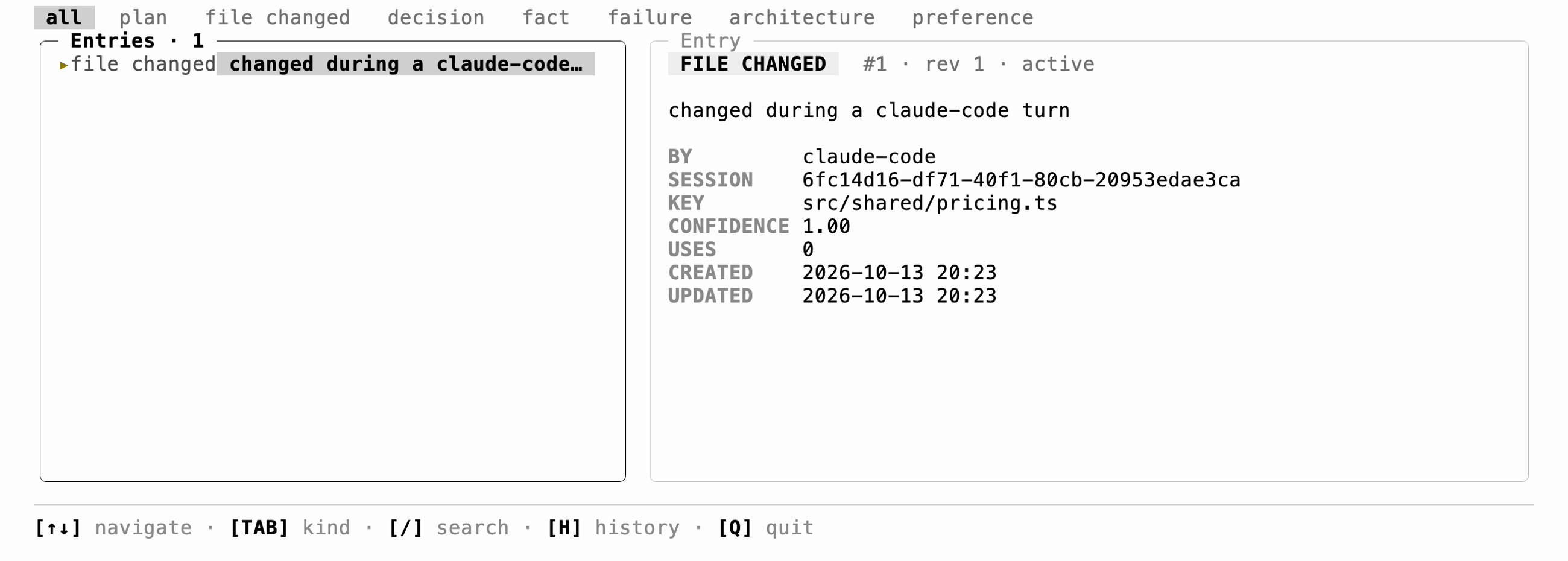
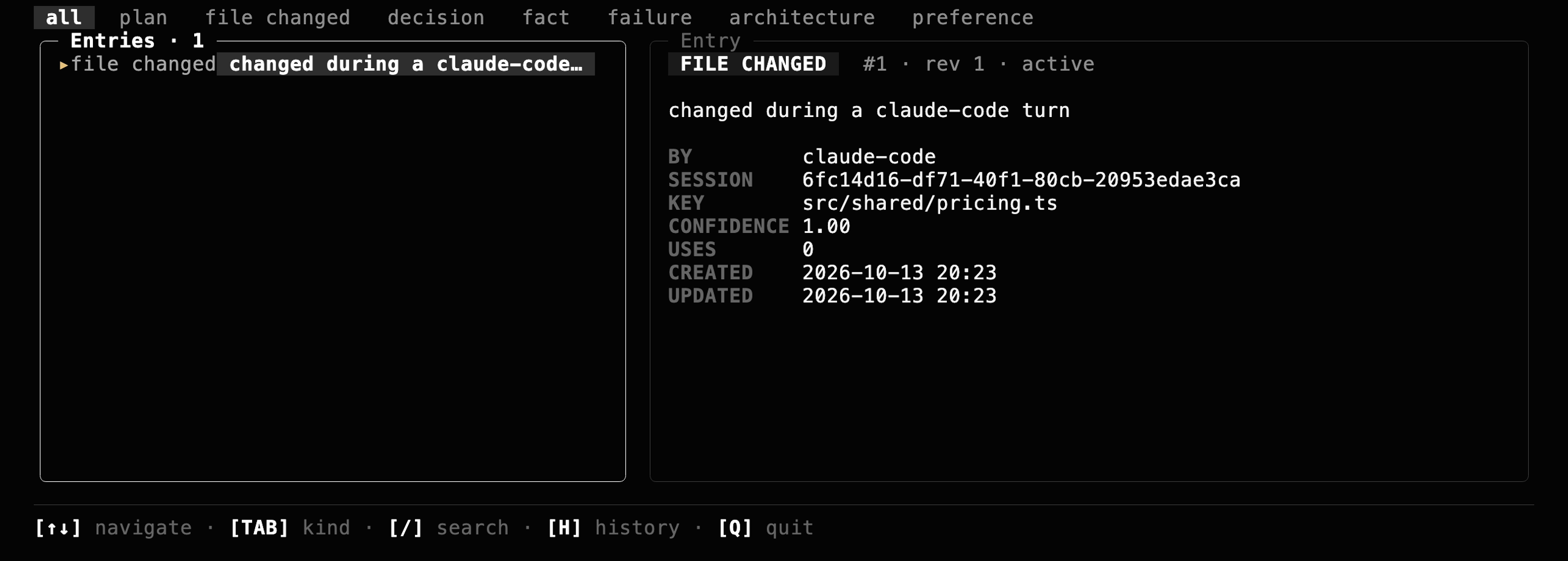
atlas-cli memory browseThe browser lists memories by kind: plans, file changes, decisions, facts, failures, architecture and preferences. Press Tab to switch kind, / to search, H for an entry's history, and Q to quit.
For scripts, atlas-cli memory list prints one memory per line. Add --all to include candidates.
Search by meaning
A small model runs on your machine to find memories by meaning, so asking "how do we rotate tokens" finds "signing keys rotate every week". Nothing is sent anywhere. It's the same model the desktop app uses, and one download serves both.
Without it, search matches words only. atlas-cli memory index downloads it and indexes the project.
Check on a project
atlas-cli status shows the whole picture for the folder you're in: your account and organization, the project it's bound to, whether capture and memory are on, how many sessions were recorded, which commits are linked, what's waiting to sync, and each agent's hooks.
atlas-cli settings puts all of it on one screen you can change: capture, shared memory, each agent, background sync and the search model.
| Problem | What to do |
|---|---|
| No Atlas: line when Claude Code, Codex or Droid starts | The hooks aren't in this folder. Run atlas-cli init, or atlas-cli agents add <agent>. |
| The agent was started from inside another Claude Code session | That child session keeps no transcript, so Atlas records only its prompt and file changes. Start the agent from a fresh terminal. |
| A session isn't on the timeline | Run atlas-cli status. If events are pending, atlas-cli capture sync sends them. If the desktop app has the folder open, close it there. |
| Sync is refused by the server | Check you still belong to the organization and can read the project, then run atlas-cli capture sync. |
status says a hook is outdated | Run atlas-cli agents add <agent> to rewrite it. |
Pause or remove it
atlas-cli capture disable pauses recording for the project. What was already recorded still syncs. atlas-cli capture enable resumes it. atlas-cli memory disable turns shared memory off for the project.
atlas-cli uninstall takes Atlas's hooks and memory entries out of every project, stops the listeners, and deletes the CLI. Each project's .atlas/ folder and your sign-in stay, because the desktop app uses them. Run atlas-cli logout first to sign out too.
Next
- Agents: every supported agent, and what each one needs the first time
- Command reference: every command and flag
- Timeline: read and discuss the sessions you recorded
- Memory: shared memory in the desktop app