
Power user
Shortcuts, keymap presets, hint navigation, layouts and the atlas command.
Atlas is meant to be the whole surface for a session. The faster you move through the rest of the app, the more of the work actually happens inside Atlas instead of around it.
Shortcuts
These are Atlas's default shortcuts, with macOS labels. On Windows and Linux, Ctrl takes the place of ⌘ and Alt the place of ⌥. Settings → Keybindings shows the bindings active on your device, and lets you change any of them.
Find your way
| Shortcut | Action |
|---|---|
| ⌘K | Command palette |
| ⌘P | Go to file |
| ⌘⇧F | Search the project |
| ⌘⌥N | Open a module in a new tab |
| ⌘⌥L | Switch layout |
| ⌘⌥Space | Hint navigation |
| ⌘⇧N | Add a project |
| ⌘⇧O | New session in a project |
| ⌘⌥C | Session capture |
| ⌘O | Open the session's folder in your editor |
| ⌘, | Open or close Settings |
Panels
| Shortcut | Action |
|---|---|
| ⌘⇧. or ⌘⌥J | Show or hide the sidebar |
| ⌘B | Files, the project tree beside your session |
| ⌘⇧B | Source control |
| ⌘⌥B | Session details |
| ⌘⇧C | Team chat |
| ⌘J | Terminal |
| ⌥J | Knowledge base |
| ⌥Z | Zen mode |
Tabs and splits
| Shortcut | Action |
|---|---|
| ⌘T | Open a surface (then a letter picks one, see Surfaces) |
| ⌘⇧T | New terminal tab |
| ⌘N | New untitled editor |
| ⌘W | Close tab |
⌘⇧[ ⌘⇧] | Previous / next tab |
⌘1–⌘9 | Jump to tab by position (⌘9 is the last tab) |
| ⌘\ | Split right, up to three columns in all |
⌥; ⌥' | Focus the split to the left / right |
| ⌥W | Close the focused split |
Sessions
| Shortcut | Action |
|---|---|
| ⌥/ | Cycle the coding agent |
| ⇧Tab | Cycle the permission mode |
| ⌘F | Find in session |
View
| Shortcut | Action |
|---|---|
⌘= ⌘- ⌘0 | Zoom in / out / reset |
The terminal and the knowledge base have their own shortcuts while they have focus. See Terminal and Knowledge base.
Command palette
Press ⌘K to open the command palette. It opens on Actions, which covers a new session in the current project, a new session in another project, going to a file, searching the project, adding or creating a project, changing the theme or appearance, pull requests, Usage and Settings. Recent Sessions comes next. Each session shows its project, whether it runs locally or in a worktree, its agent and how long ago it was last active. Below that are the project, open, layout and split commands.
Press ⌘⇧O to open the palette straight on your projects, to start a session in one. Each project shows its icon, its name and its folder. The first nine carry ⌘1 to ⌘9, which start a session there without moving the highlight.
Type to search actions, projects and sessions together. A session whose title matches comes before one that only matches its project, and newer sessions come first. Start the query with > to search commands only. A row with an arrow, such as Change theme or New session in…, opens a list of its own. Press Backspace on an empty query, or Esc, to go back. Use ↑ and ↓ to move, Enter to run the highlighted row, and Esc to close the palette.
Go to file
Press ⌘P, or choose Go to file in the command palette, to find a file in the current project by name or path. Before you type, it lists the files open in tabs, then the files you opened recently. Each file shows its icon theme icon, and the letters that match in its name are brighter than the rest. Reindex rebuilds the file list. If you opened it from the command palette, Esc takes you back to the palette with your query as you left it.
Menu bar
Every command in the menus is also an action you can bind. On macOS the menus sit in the system menu bar: Atlas, File, Edit, View, Window and Help. On Windows and Linux the same menus are in Atlas's window bar. Each item shows the shortcut you have bound to it, so a binding you change in Settings → Keybindings shows up in the menu at once.
Use another editor's keys
If your hands already know another editor, start from its keys. In Settings → Keybindings, set Keys from to VS Code, Cursor, Zed or JetBrains. Atlas also asks the first time it starts.
A preset only changes commands that editor has a well-known key for, such as ⌘⇧P for the command palette under VS Code. Everything else keeps Atlas's default.
Your choices live in a profile, which you can copy as JSON and share. You can also limit where any shortcut works with a When condition. See Settings → Keybindings.
Click without the mouse
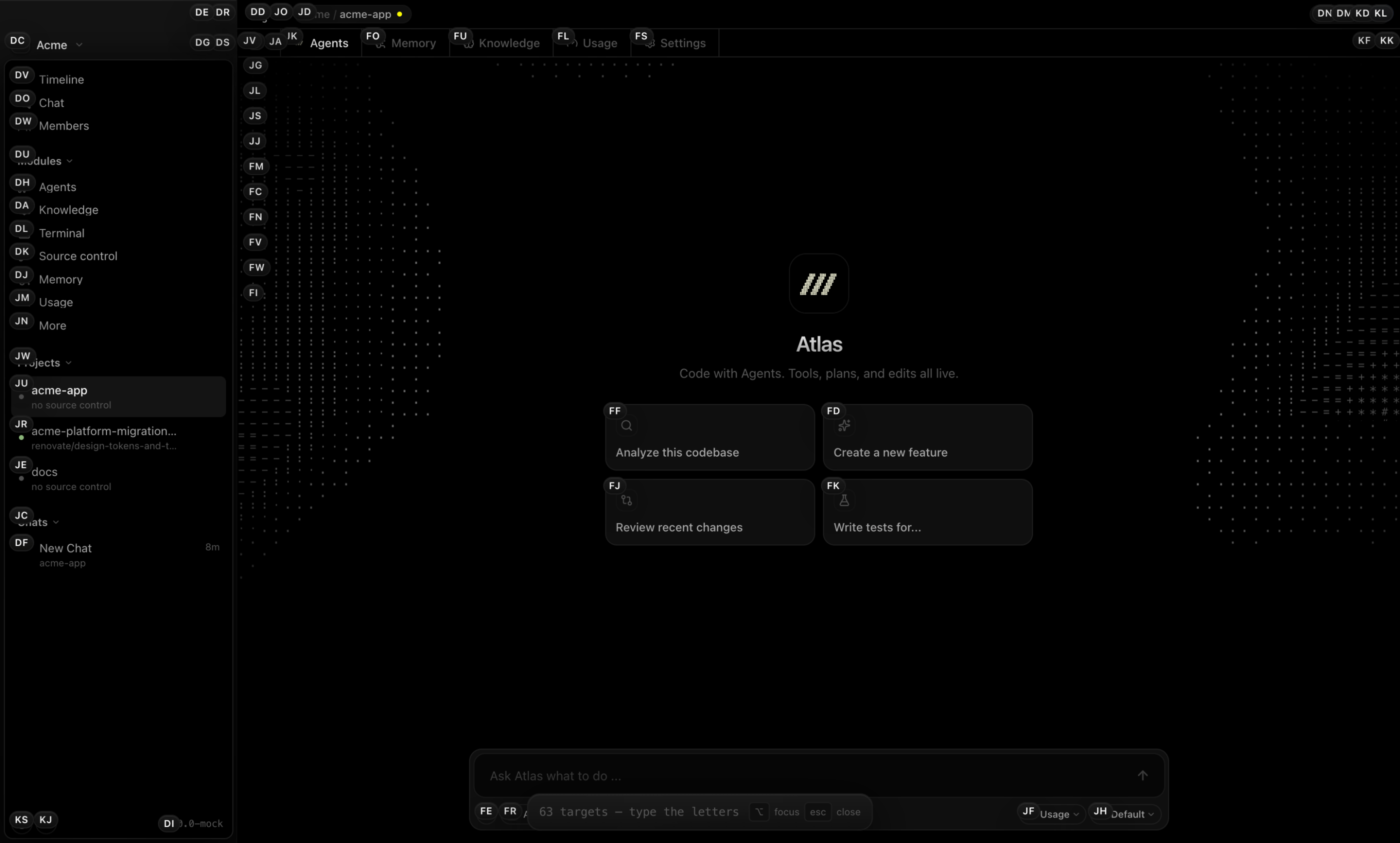
Press ⌘⌥Space and Atlas puts a short label on every button, tab and field you can see. Type a label to click that element. Backspace removes a typed letter and Esc cancels.
Rearrange the window
The bar along the top of the window is made of the columns' own headers.
The main column holds the session you are working in. Its header shows where you are, organization / project / session title, and never shows tabs. Switch sessions from the sidebar; click the session title to search for one. The header's buttons, from the left, show or hide team chat, show or hide the session details card, and, while the surfaces pane is hidden, show it again.
Every tool opens in one of two places. A surface is a tool you use beside the session, as a tab in the surfaces pane: the editor, terminals, the browser, diffs, source control, team chat, PDFs and media, logs and prompt drafts. A destination is a full page you go to: Timeline, Usage, Knowledge, the knowledge graph, Memory and Spaces.
Surfaces
Files, editors, terminals, the browser, team chat and the other surfaces open in the surfaces pane beside the session. It has its own tab strip and a + menu for opening another surface. Middle-click a tab to close it, or right-click it to close it, the others, the ones to its right or all of them, or to copy a file's path. Drag a tab sideways to move it along the strip; Atlas keeps the new order for the project, and ⌘1–⌘9 follow it. A tab stays in its own column. When the tabs do not fit, the strip scrolls: an edge with more tabs past it fades, arrows appear beside the strip, and the tab you switch to is always scrolled into view. The + and the buttons after it never scroll away. The strip ends in three buttons:
- Maximize panel gives the pane the whole center of the window, in place of the session, until you choose Restore panel size.
- Dock panel at the bottom and Dock panel on the right put the pane under or beside the session. Atlas remembers where you put it. Click the lit one to hide the pane.
Hiding the pane keeps its tabs running. Each surface has a minimum width, so a column will not resize narrower than its tool can use; team chat's is 320px.
Press ⌘T to open a surface. Atlas opens the pane if it is closed, then shows the list of surfaces. Press a single letter to pick one:
| Key | Surface |
|---|---|
| A | Agent, another session beside this one |
| T | Terminal |
| B | Browser |
| N | New file |
| G | Source control |
| C | Team chat |
| L | Log |
So ⌘T then T opens a terminal, and ⌘T then G opens source control. Press ⌘\ to split the surfaces pane into another column.
Destinations
Timeline, Usage, Knowledge, the knowledge graph, Memory and Spaces are full pages. Open one from the icons at the bottom of the sidebar (Timeline, Knowledge, Memory, Usage), from ⌘K, with its shortcut (⌥J for Knowledge), or, for a conversation's Space, with its Spaces button. It takes the area right of the sidebar, and the bar reads organization / project ‹ Timeline. The session keeps running underneath.
Only one destination shows at a time; opening another replaces it. To get back to the session, press Esc, select the back arrow (‹ and the page's title) in the bar, or use the same sidebar icon or shortcut again. Opening or focusing any session or surface also takes you back. The page stays as you left it, so returning to it is instant.
Layouts
Press ⌘⌥L to apply a layout. Each one puts the session first:
- Focus: just the session; open tools stay running, out of sight
- Develop: the file tree, the session and an editor
- Terminal: the session next to a terminal, with the file tree
- Review: the session with source control beside it
Press ⌥Z for zen mode: the session beside a browser, in two columns, with the side panels hidden. Press it again to return to the layout you had.
Open a folder from your terminal
The atlas command opens a folder as a project, the way code . does for VS Code:
atlas .            # open the current folder
atlas ./some-dir   # open another folder
atlas --version    # print the Atlas version
Atlas installs it at ~/.local/bin/atlas on macOS and Linux and refreshes it on every launch. If your shell cannot find it, add ~/.local/bin to your PATH. You can reinstall it from Atlas CLI in Settings → General.
@ mentions
Type @ in any composer to pull something into context without leaving the keyboard:
- file / folder: anything in the project
- symbol: a function, class, or other code symbol
- note: a knowledge base note
- component: a command, subagent, or rule installed from a pack
- repo: a cloned GitHub repository
- project: another project
- branch: a git branch
- past message / past session: anything earlier in this session, or an earlier one
In a project shared with your organization through cloud capture, you can also mention:
- member: a teammate
- conversation: a team chat channel or direct message
- recorded session: a session on the team timeline
- comment: a comment on a recorded session
These are sent as links rather than copied in, so an agent with access to your organization, such as Atlas Agent, can look them up.
Type ~ instead of @ to open the same picker scoped to just the knowledge base, the same shortcut the notes editor uses.