
Members & roles
Invite teammates by email or with an invite link, and decide what each person can do.
Members belong to a synced organization. A local organization has no members; turn on sync first.
Open the members manager from Invite & Manage members in the organization menu. In the web app, select Members in the sidebar.
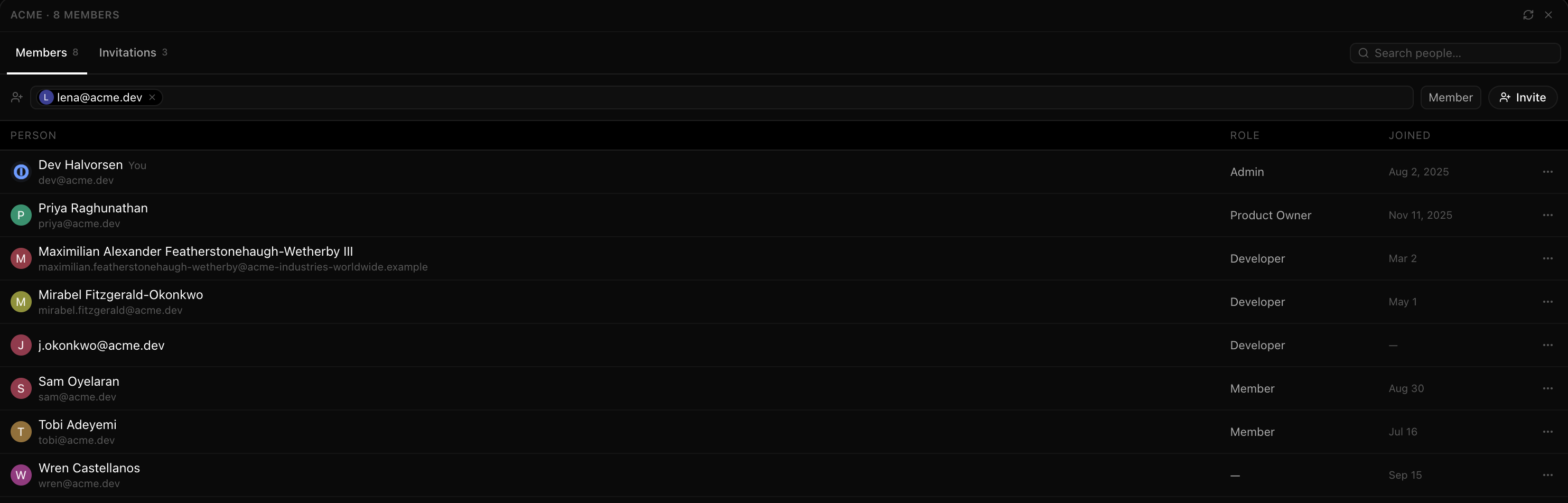
The manager has two tabs. Members lists everyone who has joined, with their role and when they joined. Invitations lists invitations that haven't been accepted yet.
Roles
Every member has one of four roles. The person who creates the organization is an Admin.
| Role | What it can do today |
|---|---|
| Admin | Everything a member can, plus invite people, change roles, remove members, manage invite links, rename the organization, choose its AI models, see everyone's usage, open ROI, set the sharing policy, and delete the organization. |
| Product Owner | Everything a member can, plus open ROI. |
| Developer | The same access as Member. |
| Member | Read the timeline, sync sessions to the cloud projects they can see, comment, and use chat, calls, prompt drafts and Spaces. |
Admin and Product Owner are the roles that change what someone can do. Developer and Member are labels you can use to describe someone's part in the team.
An admin does not get a key to everybody's conversations. Private channels and direct messages stay readable only by the people in them, admins included.
The owner
The person who created the organization is also its Owner. The owner:
- can't be removed and can't leave the organization
- is the only person who can permanently delete recorded sessions, either one session at a time or all of one member's sessions
- can open ROI, whatever their role
Ownership can't be transferred. The web app marks the owner with an Owner tag in the members list.
Invite people by email
Only admins can invite.
- Open the members manager.
- Type one or more email addresses into the invite bar. A comma, or Enter, turns each address into a chip.
- Choose a role from the picker beside the addresses. In the desktop app it starts at Developer.
- Select Invite.
Atlas emails each person an invitation with a link to accept it. The link expires after 48 hours. Atlas sends invitations one at a time, so a bad address doesn't stop the rest. The desktop app also copies the acceptance links to your clipboard, in case you'd rather send them yourself.
On the Invitations tab, select Copy invite link to copy an invitation's link again, or Cancel invite to withdraw it. In the web app, an admin can also Resend invite.
Share an invite link
An invite link lets several people join without inviting each of them by address. Create one in the web app, in the organization settings under Invite links:
- Select New link.
- Choose what people join as under Joins as: Member, Developer or Product Owner. A link never makes anybody an admin.
- Choose Uses: 1, 5, 10, 25 or no limit. Each person who joins uses one.
- Choose Expires after: 1 hour, 1 day, 7 days, 30 days, or never.
- Optionally, list domains under Only these email domains, so a forwarded link doesn't work for anybody outside your company.
- Select Create link. The link is copied to your clipboard.
Anyone with the link opens it in a browser, signs in, and selects Join <organization>. A link that has expired, been revoked or been used up says so, and asks them to get a new one.
To stop a link working, select Revoke. People who already joined with it stay.
Change a role
Admins change a role from the ⋯ menu on a member's row, under Role. In the web app it's Change role….
The change takes effect for you at once. The other person picks it up when their app next refreshes its sign-in, within a few minutes.
Remove a member
Admins remove a member from the ⋯ menu with Remove from organization. Their recorded sessions stay on the timeline, shown as Former member. The owner can delete them if they should go too.
Leave an organization
Leave from the web app: open the organization settings and select Leave under Danger zone. You lose access until somebody invites you back.
The owner can't leave. In the desktop app, an admin can't leave either until they give someone else the Admin role, so the organization never loses its last admin.
Next
- Organizations: manage the organization itself
- Timeline: what members can see
- AI access & spend: usage per person