
Editor
Read and edit files alongside your agent.
Files open in tabs in the surfaces pane, beside the session. Use the editor to follow an agent's changes and make a correction yourself.
Press ⌘P to go to a file by name or path, or open one from the explorer. ⌘N, or ⌘T then N, opens an untitled editor.
Read any file
Files open in the same code view as a diff review, so long files scroll smoothly. Atlas highlights the syntax of every language it knows. Files without a grammar open as readable plain text. Files over 8 MB open read-only as plain text. Files over 64 MB don't open in Atlas at all; the tab says the file is too large and offers Open in your editor instead.
Some files can also be shown rendered. Use the toggle beside the file's path to switch between the source and the rendered view. Atlas remembers your choice for each kind of file.
- Markdown opens as source. The rendered view shows the HTML a README uses, such as collapsible sections and sized images, but drops anything that could change Atlas itself: styles, frames, forms, embeds and page redirects. Links open in your browser.
- CSV and TSV open as a table.
- HTML opens as a rendered page. Scripts don't run and remote images and styles don't load, so the page shows what is in the file itself.
Move around with the path
The tab names the file. The row below it shows the file's path, from the project down to the file, and the file's buttons on the right: Open in your editor, the rendered view for Markdown, CSV and HTML, word wrap, and the project tree. The tree sits on the right of the file, under that row.
- Click a folder in the path to find it in the tree. If the tree is hidden, it opens. The rest of the path stays, dimmed, so you can click back down to the file.
- Click the arrow after a folder to list what's in it, and pick a file to open it.
- For a file outside the project, the path starts at the top of your disk, and clicking a folder shows it in Finder.
If the row is too narrow, the path scrolls sideways and keeps the folder you're in visible.
Edit and save
Click into a file and type to edit it. A dot on the file's tab marks unsaved changes. If you undo back to what is on disk, the dot clears. Press ⌘S to save. Atlas never saves for you. If a save fails, for example because the file is read-only, Atlas shows the error and keeps your edits.
Closing a tab with unsaved changes asks first: Save, Don't save, or Cancel. Escape cancels. If the save fails, the tab stays open.
Point at a line number and click + to comment on that line for the agent, or drag down the line numbers to pick a range. Write in the box that opens under the lines and click Comment (⌘↵). The comment goes into the session's composer as a chip named after its lines, such as src/app.ts:12, and stays under them in the file until you send. When you send, the agent gets the comment with the lines it is on. Click the chip's ×, or delete the comment from the file, to drop it. These comments work the same way as comments on diff lines. They go to the active session, and the + only shows when a session is open.
Press ⌘F to find in the file. In a large read-only file, it opens a simple find bar that jumps between matches. Both shortcuts can be changed under File in Settings → Keybindings.
Word wrap is one setting for every file. Turn it on or off with the wrap button beside the file's path.
Open more than code
Files that are not text open in a viewer that suits them:
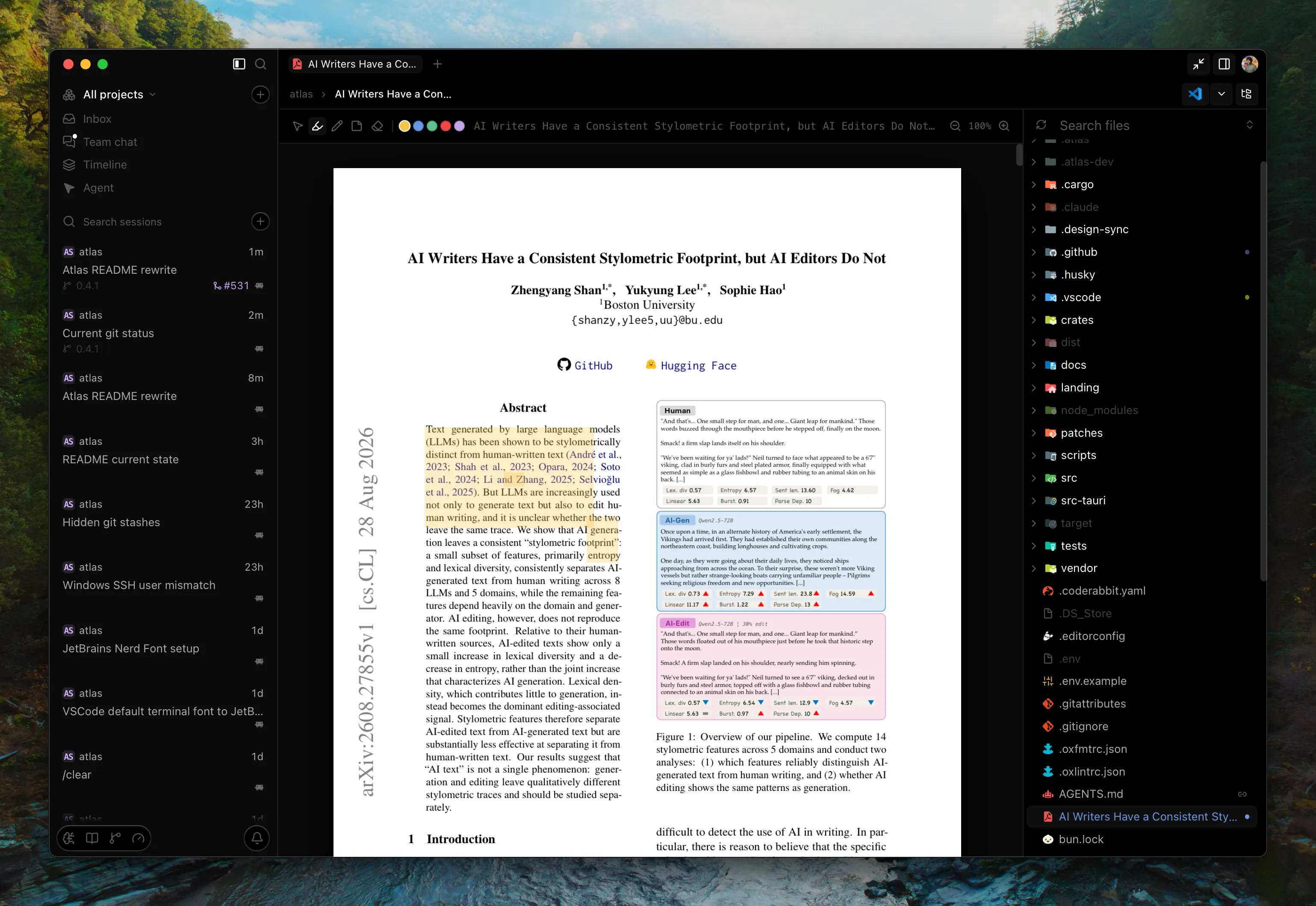
- PDF: read, zoom, and annotate with highlights, freehand drawing and notes. Press ⌘S to save your annotations. Atlas keeps them in the project's
.atlas/directory rather than writing them into the PDF, so you can still edit or erase them later. - Jupyter notebooks (
.ipynb): markdown cells, code and saved outputs, read-only. Atlas shows the notebook as it was saved and does not run it. - Images, video and audio: view or play them in a tab.
- SVG: see the rendered image, and copy its source.
For a file Atlas cannot display, choose Open in Default App from the explorer.
Open in your editor
Atlas finds the editors installed on your computer, such as VS Code, Cursor, Zed, Windsurf, Sublime Text, the JetBrains IDEs and Xcode. Open in, the editor's icon beside the file's path, opens the file in your editor at the cursor's line; its arrow lists the others. The explorer's context menu and the command palette (Open file in …, Open project in …, named for your editor) do the same. Choose which editor with Preferred editor in Settings → General. Automatic uses the first editor Atlas finds. If an editor fails to start, Atlas shows its error.
Review git context
Change bars mark lines added, changed or deleted since HEAD. Inline blame shows the author, time and commit summary for the line under your cursor. With word wrap on, it appears after the file's path, in the row under the tab, instead, so lines never change height as you move. It is plain git blame: it doesn't look up the agent session behind the line. To find that, open the commit in Source Control's History, where it shows Produced by N sessions. See Git & Diff. It is on by default; turn it off with Inline Git blame in Settings → Source Control.
Work safely with an agent
Atlas reloads an open file when the agent changes it and you have no unsaved edits. If you do have edits, Atlas keeps your buffer intact and shows Disk changed · Reload for when you are ready to discard them.
Atlas never overwrites unsaved work.
Work side by side
Press ⌘\ to split the surfaces pane into another column, so two files sit side by side. Choose Maximize panel at the right end of the pane's tabs to give the editor the whole center of the window. See Power user for moving between splits.
Change the look
One theme colors the editor and the rest of Atlas together, chosen in Settings → Appearance. Switching themes keeps your unsaved edits. See Themes for what a theme covers and how to write one.
Next
- Explorer: find a file
- Git & Diff: review a change