
Calls
Voice calls and video meetings from any conversation.
Every conversation in team chat can hold a call. You start it from the conversation's header, and the call itself runs in the web app at app.tryatlas.cc, in your browser.
Atlas has two kinds of call:
| Voice call | Meeting | |
|---|---|---|
| Audio | Yes | Yes |
| Video | No | Yes |
| Who can join | Members of the conversation, up to 20 | Members, plus guests with a link |
| Recording, transcript, AI call note | No | Yes |
| Available | Every organization, free | Organizations whose plan includes meetings |
If your organization's plan doesn't include meetings, you have voice calls only, and the web app shows just the voice call button.
Start a voice call
- Open the conversation in the web app.
- Click the phone button in the conversation header.
The call starts at once and a call card appears in the conversation. Other members click Join on the card or in the header. A teammate in a DM sees the call ring.
Voice calls are audio only and run browser to browser. If everyone else leaves, you are taken out of the call after five minutes alone.
Start a meeting
Meetings add video, guests and recording.
- Click the phone or video button in the conversation header.
- Choose Start with this conversation for members only, or Start with a guest link to let people outside Atlas join.
When meetings are on, the phone button opens a menu instead: Start a voice call, or Meeting with a guest link.
Start from the desktop
The phone and video buttons in a desktop conversation's header start a meeting. Choose Call channel, or Call with guests for a guest link. Atlas copies the call link to your clipboard and opens the call in your browser.
If the conversation already has a live call, the menu offers Join ongoing call and Copy call link instead of starting a second one.
On an organization without meetings, the desktop buttons can't start a call. Start a voice call from the web app.
Invite guests
A guest link is chosen when the meeting starts and can't be added later. Share the link, which looks like app.tryatlas.cc/j/…. A guest who opens it knocks, and a host lets them in from the call. Anyone in the conversation can copy the link from the call card.
Record a meeting
The host turns recording on and off from inside the call. Everyone in the call, including people who join later, sees that it is being recorded.
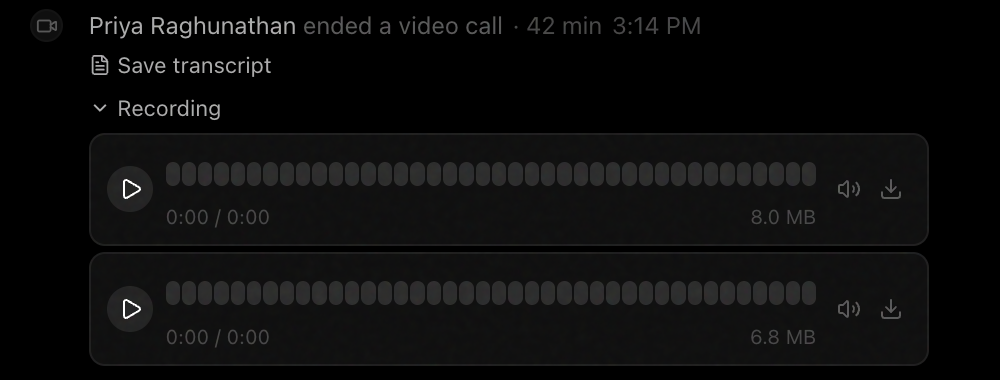
After the meeting ends, its card in the conversation fills in:
- Recordings: play each recorded track, or save it to disk.
- Transcript: produced after the call. On the desktop, save it as a CSV file from the card.
- Call Note: an AI summary with the outcomes, decisions and action items. The note uses your organization's AI access; without it, a simpler summary may be used, or the note is marked unavailable until AI access is added.
Calls in drafts and Spaces
You can also start a voice call inside a prompt draft or a conversation's Space, so the people writing or drawing together can talk while they work. Each draft and each Space holds one call at a time. These calls are voice calls, started from the web app.