
Your account
Sign in with Google or GitHub to use Atlas Agent and work with your team.
You can use Atlas without an account. The editor, terminal, git, ACP agents such as Claude Code, memory, local session capture and your own timeline all work signed out, in a local organization.
What signing in unlocks
Sign in when you want any of these:
- a synced organization with members
- Atlas Agent, which also needs AI access for the organization
- cloud projects, so your sessions reach the team timeline and you see your teammates'
- comments on sessions
- team chat, calls, prompt drafts and Spaces
- the web app at app.tryatlas.cc
Choose a sign-in provider
Atlas accounts sign in with Google or GitHub. There is no Atlas password to create or reset.
You can connect both providers to the same account. In the web app, open Account Settings and use Sign-in methods. Your email follows the provider you signed up with.
Sign in from the desktop app
The desktop app signs in through your browser with a one-time device code.
- Select your avatar in the top-right corner of the window, then Sign in. While you are signed out, clicking Team chat at the bottom of the sidebar starts the same flow.
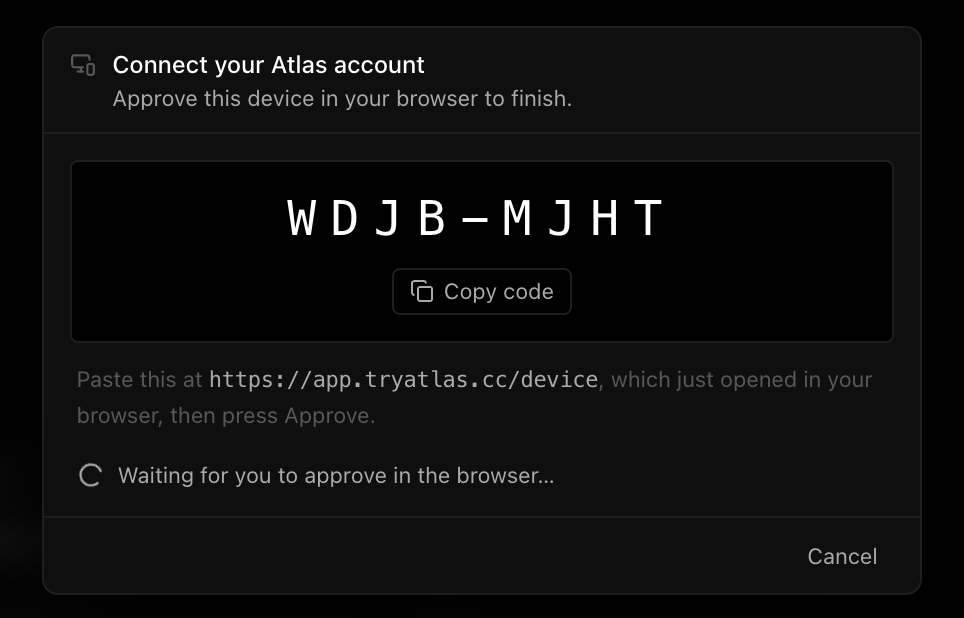
- Atlas shows Connect your Atlas account with an eight-character code, and opens the approval page in your browser.
- If the browser asks, sign in to Atlas with Google or GitHub.
- Paste the code into Device code (the dialog has Copy code), then select Approve.
- Back in Atlas, the dialog says Connected. Select Close.
The code proves that the approval in the browser belongs to this device. If the browser doesn't open, the dialog shows the approval address so you can open it yourself. A code that expires or is denied offers Try again.
Stay signed in safely
Atlas stores the credential on your machine and keeps you signed in across restarts. The interface receives your identity and organization list, but never your session or access token.
Atlas caches your profile photo locally, so it stays available offline. An outage or a rate limit does not sign you out. Only a rejected or expired server session does.
Manage your devices
In the web app, Account Settings lists your Active sessions: every browser and desktop signed in to your account. Sign one out from there, or sign out every other device at once.
The same page has an Access token section with a short-lived personal token for scripts. The desktop app never needs it.
Sign out
Select Log out from the account menu. Atlas immediately clears the credential, identity and cached photo on this device, then asks the server to end the session in the background.
If that request can't reach Atlas, the app tells you the server session may stay active until it expires. Sign that device out from Active sessions in the web app if it matters.
Signing out does not delete your local organizations or remove you from synced ones. Synced organizations lock until you sign in again.
The account menu
Select your avatar in the top-right corner of the window to open it. It shows your name and email, and holds:
- Sign in, while you are signed out
- Settings and Privacy, which open those pages of Settings
- Help: the docs, feedback, keyboard shortcuts, community links, Check for updates and the Atlas version (click it to copy the number)
- Theme: System, Light or Dark
- Interface size: − and + buttons around the current percentage, the presets Compact (90%), Default (100%), Large (115%) and Larger (130%), and Reset to default
- Log out
Next
- Organizations: create a synced organization or sync a local one
- Members & roles: invite your team
- Web app: your organization in the browser