
Session capture
Record a project's agent sessions, link them to commits, and share them with your team.
Session capture records what agents do in a project: every prompt, response, tool call and file change. It's what feeds the timeline, and what lets Atlas link a commit to the session that produced it as a checkpoint.
Capture is off until you turn it on, one project at a time. Open it from the project name in the breadcrumb at the top of the session, or press ⌘⌥C.
Local or Cloud
Under Where sessions are stored, choose one:
| Local | Cloud | |
|---|---|---|
| Where the record lives | The project's .atlas/ directory on this machine | The same local record, also synced to your organization |
| Who can see it | You | Every member of your organization, or only the members you name |
| What it needs | Nothing: no account, no network | Git, a signed-in account and a synced organization |
| Checkpoints and the timeline | Yes | Yes, merged with your teammates' sessions |
Local is a complete mode, not a trial of Cloud. You can keep a project Local forever, and switch it to Cloud later without losing anything.
Both modes record the same way and redact secrets on your machine before anything is stored.
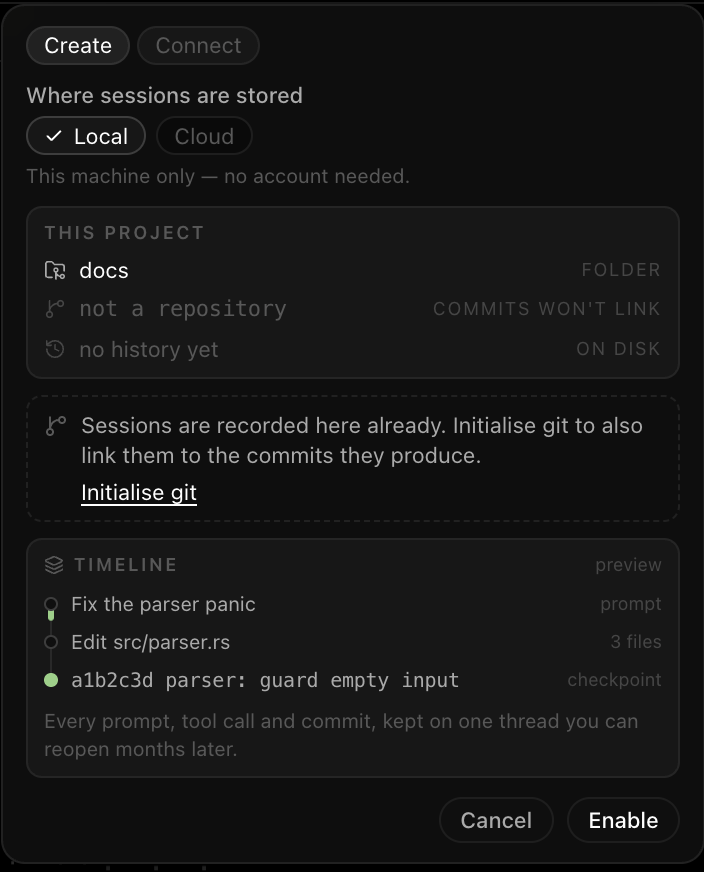
Turn on Local capture
Open Session capture, keep Local, and select Enable. Records stay in .atlas/ on this machine.
Once capture is on, a steady green dot shows beside the project name. Hover it for a one-line status.
Share a project with your team
There are three ways to get a project's sessions onto your organization's timeline. Each one shows you exactly what will be sent, and asks you to confirm, before anything leaves your machine. Canceling at that step changes nothing.
Cloud always uses the organization you have open. To share into a different one, switch organizations first.
Create a Cloud project
For a project that has no capture yet, open Session capture, select Cloud, and fill in:
- Slug: the project's name in your organization. Atlas checks it's free as you type.
- Repository: prefilled from the repository's
origin. This is how teammates' copies find the project later. You can clear it. - Restrict to named members: off by default, which lets every member read it. You can change this later.
Select Continue. Atlas lists the sessions it found on disk, their date range and their size, then asks Share this Project's history? Select Share and enable Cloud.
Connect to a teammate's project
If a teammate has already shared this repository, open Session capture and select the Connect tab instead. Atlas lists your organization's projects and preselects the one that matches your checkout's first commit and origin.
When several projects match, as happens with repositories made from the same template, Atlas selects none and lets you choose. The server checks your pick against the repository again before it connects, so a wrong guess can't mix someone else's sessions into a shared timeline.
Promote a Local project
For a project that's already capturing locally, select Sync beside Local to open Promote to Cloud. Use Create to publish it under a new slug, or Connect to attach its history to a project your organization already has.
Select Continue to see what will be published: the number of sessions, their date range, and how many secrets were redacted before storage. Select Promote to Cloud (or Connect and sync) to send it.
Move a project's sync
To sync a Cloud project somewhere else, select Change beside Cloud and pick another project in your organization. Atlas sends this project's sessions to the new one. The old project keeps its copy, and its comments stay there.
When Cloud is unavailable
Cloud options stay on screen but disabled, with the reason on hover:
| Reason | What to do |
|---|---|
| Install git to share with an Organization | Install git, then reopen the panel. |
| Sign in to share with an Organization | Sign in. |
| Organization is local-only, sync it to use Cloud | Turn on sync for the organization from the organization menu. See Organizations. |
How syncing works
Capture never waits for the network. Atlas writes every record locally first and sends Cloud records in the background, so working offline is normal: records go out when you reconnect.
If some records can't be sent, the panel says how many and offers Retry. Atlas never retries a failure without you.
When a Cloud project's history import is waiting for your approval, the panel says History import is waiting for your review. Select Review to see what it would send.
Protect what is stored
An agent that reads a file such as .env puts its contents into the conversation. Atlas redacts secrets on your machine before it writes a transcript to disk, not just before upload, so the local record is protected too.
If redaction can't finish, Atlas doesn't store the content. Imported transcripts go through the same redaction.
Bring in earlier Claude Code sessions
When you turn on capture, Atlas imports the Claude Code transcripts already on disk for that folder. Your timeline starts with the work you've already done.
Atlas keeps checking while the project is open, so a Claude Code session you run in a terminal outside Atlas is brought in too. Transcripts it has already imported, and duplicates of sessions recorded in the app, are skipped.
To record terminal sessions as they run, from Claude Code and seven other agents, with or without the app open, use the Atlas CLI.
Imported sessions never get checkpoints. The linking rule below needs to know which files existed before the agent wrote them, and that can't be recovered from an old transcript. Rather than guess, Atlas leaves imported sessions unlinked.
How commits become checkpoints
A checkpoint is the part of one session whose work landed in one commit. A session that produces five commits gets five checkpoints, and two sessions that both contributed to one commit each get a checkpoint on it.
Atlas watches, it doesn't intercept
The desktop app installs no git hooks, changes no git configuration and writes nothing to your repository. It watches the repository's refs and examines each new commit, so a commit made from Atlas, another editor or a terminal links the same way.
The Atlas CLI has no window to watch from, so it installs a git post-commit hook instead, and keeps any hook you already had. See Commits and checkpoints.
When you open a project, Atlas also examines the commits made while it was closed. Work you committed with Atlas shut still finds its session.
The linking rule
For each file in a commit that a session touched:
- A file that existed before the agent touched it links on its path. You're expected to review and adjust agent work before committing, and the link survives that.
- A file the agent created links only if at least half of the agent's lines are still in the committed version. If you threw the agent's file away and wrote your own, the agent doesn't get the credit.
- A deleted file links when the agent deleted it.
A commit never links to a session that started after it. Renames are followed, and paths match regardless of letter case.
Once a commit settles a touched file, that touch stops counting. Later commits to the same file, including ones that arrive from teammates through git pull, don't link back to an old session.
Edits an agent makes through a shell command are attributed by comparing the working tree before and after the command. Commands that run longer than 60 seconds aren't attributed, because by then you've probably edited something yourself.
Merges
Merge commits don't get checkpoints of their own. When Atlas reaches a merge, it examines the commits it brought in, so work done on a branch still links once, at the commit that produced it.
Amend, rebase and cherry-pick
Rewriting history changes commit hashes. When a linked commit disappears, Atlas looks for the same change under a new hash, using git's patch-id, a fingerprint of the diff rather than the commit:
- One match, as after a rebase or an amend that only changed the message: the checkpoint moves to the new commit. Comments your team left on it stay attached.
- Several matches, as after a cherry-pick: Atlas prefers the commit on the branch the checkpoint was recorded on.
- No match, or no clear winner, as after a squash or an amend that changed the code: the checkpoint is orphaned.
An orphaned checkpoint keeps its session and stops claiming a commit. Atlas would rather show no link than a wrong one, because on a shared timeline a wrong link reads as fact. If the commit comes back, after an undone force-push for example, the checkpoint links again.
Atlas waits while a rebase, cherry-pick or merge is still in progress, so half-rewritten history can't orphan anything.
See it in Source Control
Select a commit in Source Control's History to see Produced by N sessions, with each session one click away. Orphaned checkpoints are left out. See Git & Diff.
Capture without git
A folder doesn't need to be a git repository. Sessions are recorded either way, but they can't link to commits.
In a folder without git, the capture panel offers Initialize git. It runs git init so future commits can become checkpoints.
Pause and resume
Select Pause capture to stop recording new work. Nothing already recorded is deleted. Select Resume capture to start again.
When something is wrong
The dot turns amber when capture is degraded and red when it has stopped. Open session capture to see the reason and what to do next.
| Problem | What to do |
|---|---|
| The git watcher stopped, so commits aren't linking | Select retry. Commits made meanwhile are still picked up. |
| Another Atlas window is recording this project | Close the other window to record here. |
| The session store can't be written | Check free disk space and permissions on .atlas/. |
| The capture worker stopped | Restart Atlas. What was already captured is safe. |
Known limits
- A checkpoint rebased more than about 200 commits back can't be found again, and orphans.
- Squash-merging a branch and deleting it orphans that branch's checkpoints.
- An agent's edit to an existing file still links if you rewrote that file yourself before committing.
- Files changed by git content filters, such as LFS pointers, can fail the check for agent-created files.
Next
- Timeline: read and discuss recorded sessions
- Git & Diff: review and commit agent changes
- Atlas CLI: capture agents you run in a terminal, without the app