
Atlas Agent
Atlas's built-in agent, which works in your project, your app and your organization.
Atlas Agent is the agent built into Atlas. It ships with the app, so there's nothing to install, and it runs through the Atlas gateway on your Atlas account. Usage is billed to your organization, and no provider key ever sits on your machine.
It's not Atlas, your organization's own agent, which runs on Atlas's servers and answers questions about the organization from the web app and the desktop app's Ask Atlas panel.
Like any agent, it reads and edits your code and runs commands. Because it runs inside Atlas, it can also move around the Atlas window for you and, in a Cloud project, read and act in your organization: find out what a teammate is working on, answer comments on a session, or post a session report to a channel.
What it needs
Atlas Agent needs three things:
- You're signed in to your Atlas account. See Your account.
- Your organization is synced. A local organization, including the "Personal" one Atlas creates for you, can't use it. See Organizations.
- Your organization has AI access. Atlas grants it to the organization as a plan, and the plan sets the budget. See AI access & spend.
When one is missing, the composer is disabled and a bar above it says why:
| The bar says | What to do |
|---|---|
| Organization is local, sync it to use Atlas Agent | Select Turn on sync. If you're signed out, Atlas asks you to sign in first. |
| Organization doesn't have AI grants | Ask Atlas for AI access. Request opens credits.tryatlas.cc, where you ask for it, and Refresh checks again. |

Start a session
Choose New session at the top of the sidebar and pick Atlas Agent in the composer. Choose a model from the list, which comes from the gateway and shows the models your organization can use, and a permission mode.
Work in your project
Atlas Agent reads, searches and edits files, and runs commands in the project. It also has:
- Skills. Your skills appear as slash commands. Type
/to see them. - Shared memory. It reads the project's memory at the start of a session and records decisions, facts and failures as it learns them, so the next agent doesn't start from zero.
- Built-in commands.
/compactsummarizes the conversation to free up context,/diffand/reviewshow and review your uncommitted changes,/goalsets an objective it keeps in view,/initwrites or improvesAGENTS.md,/statusshows the model and working directory, and/undorewinds the conversation to before your last message.
Permission modes
Choose a mode in the composer, or press ⇧Tab to cycle through them.
| Mode | What it may do |
|---|---|
| Ask | Asks before edits and commands. The default. |
| Accept edits | Edits files in the project without asking. Asks before anything that reaches outside it. |
| Plan | Read-only: no edits and no commands that change anything. |
| Bypass | Runs everything without asking, with full access to your machine. |
In every mode except Bypass, commands run in an operating-system sandbox. Ask and Accept edits can write only inside the project and have no network access until you approve a command that needs more. Plan can't write at all.
Questions mid-turn
When a request is ambiguous, Atlas Agent can stop and ask instead of guessing: "Four comments match. Which one?" The question appears as a card above the composer with options to pick from, and the turn waits for your answer. Dismissing the card tells the agent you declined, and it carries on from there.
Navigate the app
Atlas Agent can act on the Atlas window for you. It can:
- open a file at a line, a diff, or a settings section
- show a panel, or switch to or close a tab
- run any action from the keyboard shortcuts list
- fill in a message for you to send
- type a command into a terminal for you to run
It never switches projects, sends a message for you or presses Enter in a terminal, and it won't close a file with unsaved changes. It acts only on the project you're looking at. Each action shows in the session and in the Logs panel.
Turn this off with Settings → Agents → Let Atlas Agent navigate the app.
Act in your organization
In a project whose capture is Cloud, Atlas Agent can read your organization and act there as you. It works in the organization that project belongs to, even if the window is showing a different one.
It can read:
- The roster. Who's in the organization, and their roles.
- Recorded sessions. Everyone's sessions in this project, or another project in the organization you name, newest first. It can filter them by person, by date or by keyword, flags the ones still live, and can read any session's prompts, replies and tool calls in full.
- Comments. The comment threads on a recorded session.
- Conversations and your inbox. Your channels and DMs, and what's waiting in your inbox.
And it can act:
- Reply to a comment, and resolve or reopen a comment thread.
- Send a team chat message to a channel or a person, including a session report: a written summary of a recorded session with a card that opens it on the timeline.
- Draw in a Space. Create a page in a conversation's Space and draw a diagram on it.
Admins can also ask for a member's activity: the sessions, checkpoints, lines added and removed, and tokens recorded through Atlas over a period. It counts what Atlas recorded and nothing else, so it's not a measure of anyone's performance.
Things to ask
- "What is Sam working on right now?"
- "Summarize what the team's agents did on the billing service this week."
- "Find the open comments on my last session and answer them."
- "Write a session report for this session and post it to #backend."
- "Draw the sign-up flow from this session on a new page in the #design Space."
Anything that reaches someone else asks first
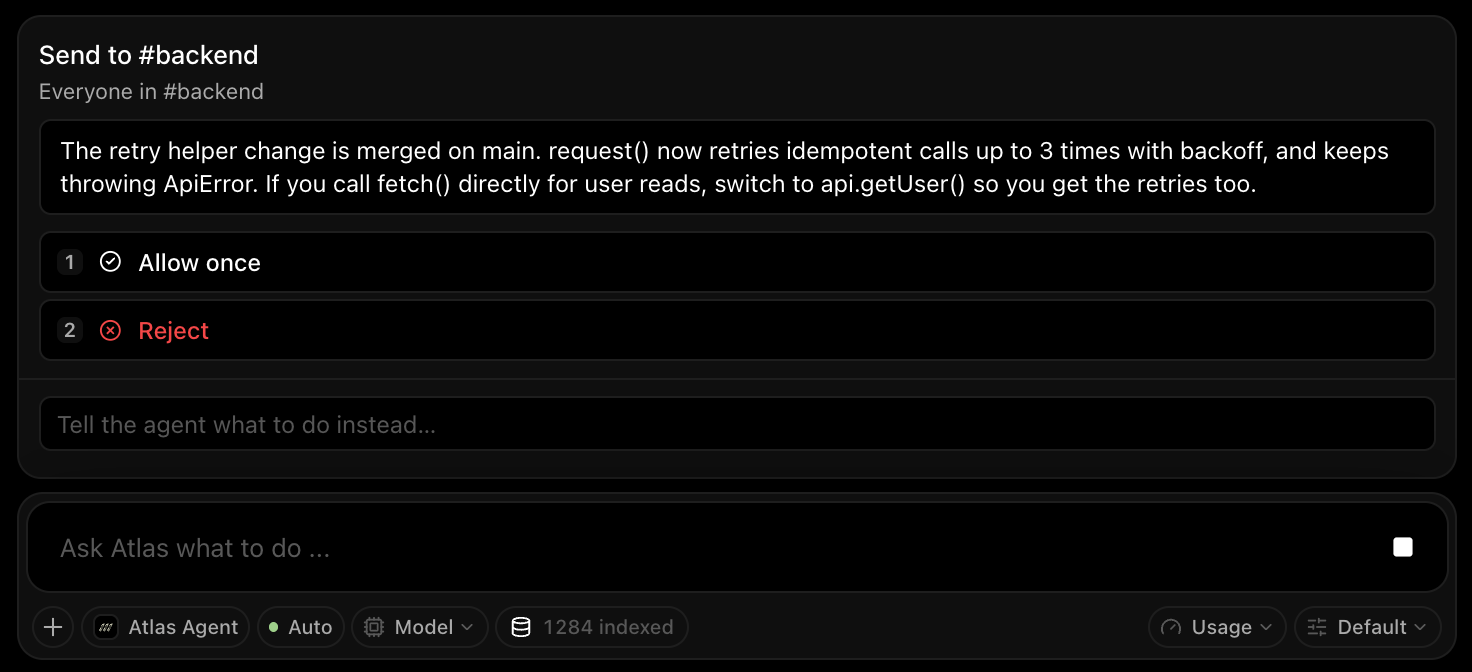
Replying to a comment or sending a message reaches another person in your name, so Atlas Agent asks before it does either. The approval card shows the recipient and the full text before you can allow it.
- For a comment reply, the card offers Allow, Allow for this session and Decline. Allow for this session lets later replies through without a card until the session ends.
- For a team chat message, the card offers only Allow and Decline. Every message asks, because the next one can go to someone else and say something else.
Allow is a click. Pressing Enter doesn't send anything, so a keystroke meant for the composer can't approve a message.
This holds in Bypass mode too: a message the agent tries to send without your approval is refused, and nothing is sent.
Resolving a comment and drawing on a Space page are visible to others and easy to undo, so they don't ask.
Every call is logged
Each organization action, including the ones you declined and the ones that failed, shows in the session and in the Logs panel. Messages appear under your name, because you approved the exact words.
Turn this off with Settings → General → Let Atlas Agent act in your organization. A running session stops at its next call.
Limits
- Prompts are text only. Atlas Agent does not accept images yet.
- There is no reasoning-effort control.
- Organization tools need a Cloud project and act only in the organization that project belongs to.
- Searches by person or date look at recent sessions, the last 14 days unless you name a period.
- Member activity is for admins only.
Next
- Agents: ACP agents and how capabilities vary
- AI access & spend: who can use Atlas Agent, and what it costs
- Timeline: the recorded sessions Atlas Agent reads