
Settings
Configure Atlas for the way you work.
Press ⌘, to open Settings, or choose Settings from the account menu under your avatar, in the top-right corner of the window. Settings fills the window. Press ⌘, again, or click Back at the bottom of its sidebar, to return to your work.
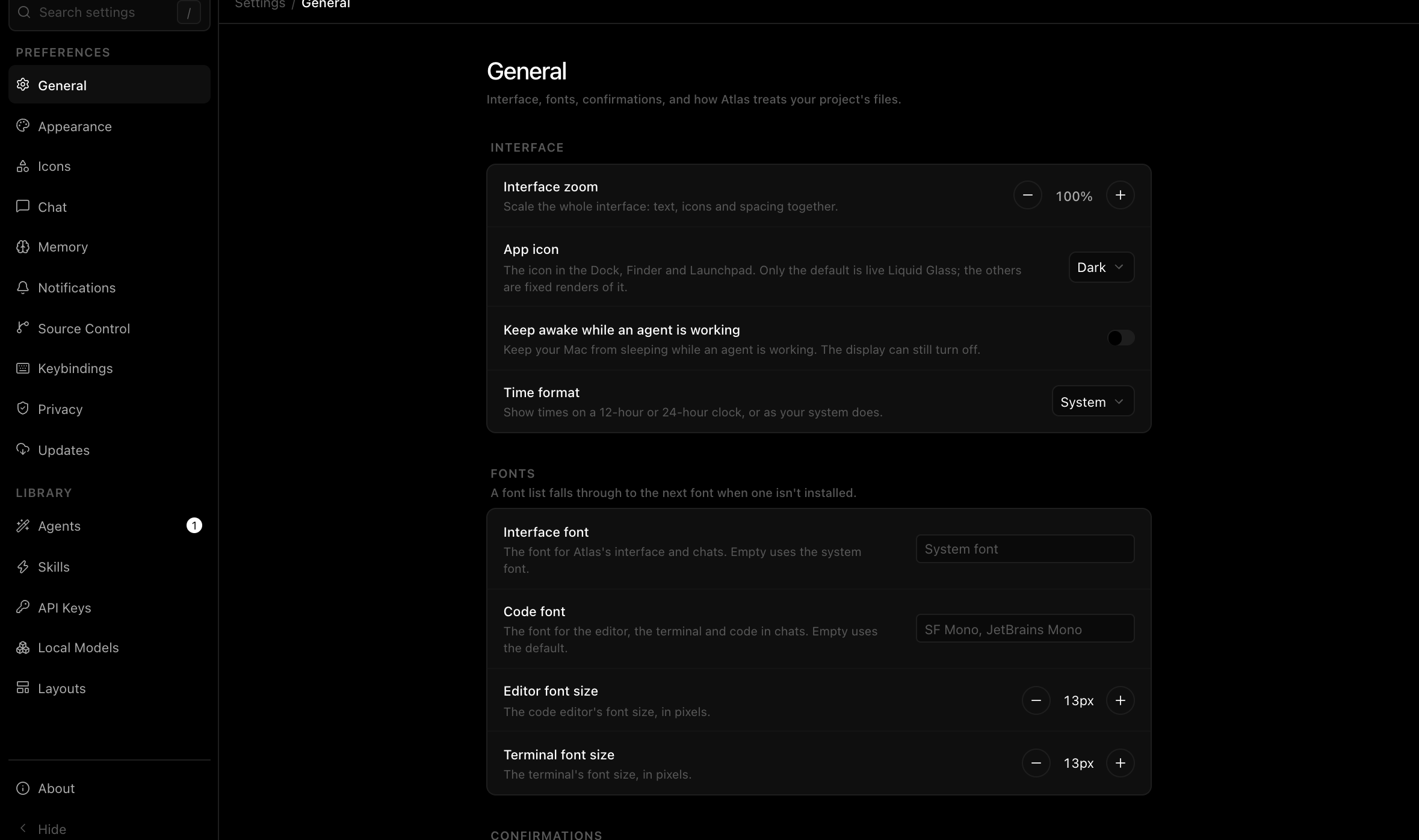
The sidebar has two groups. Preferences holds how Atlas behaves: General, Appearance, Sessions, Memory, Notifications, Source Control, Keybindings, Privacy and Updates. Library holds what you install and manage: Agents, Skills and Layouts. About sits at the bottom.
Atlas saves your preferences to ~/.config/atlas/config.toml, a commented file you can also edit by hand. Configuration file lists every key. If an edit breaks the file, Atlas keeps using the last valid settings and offers Open config.toml or Recreate defaults at the top of General.
Find a setting
Press / while Settings is open, or click the search box at the top of the sidebar, and type part of a setting's name or what it does. Pick a result to jump to its page; the row flashes so you can see it.
Change and reset
Every switch and menu saves as soon as you change it. There is no Save button.
When a setting differs from its default, a small reset arrow appears next to its name. Click it to put that one setting back. Restore defaults, at the top right of a page, resets everything on that page at once, and first lists exactly which settings it will change.
A setting that does not apply right now is greyed out. Hover it to see why, for example when notifications are off.
Per-project settings
A few settings can be different in one project: Default agent, the two Atlas Agent permissions, Let agents search code with Atlas, Auto-fetch from remote, Inline Git blame, Nightly memory review and Mirror memory as an Agent Memory Repo. The pages that hold them (Sessions, Agents, Memory and Source Control) open with Applying settings for All projects.
Pick a project there to change its values instead. The agent permissions, auto-fetch and the memory jobs can only be turned off for a project: if one is off for all projects, it stays off everywhere, so a repository you clone can never switch it back on. Each of those rows then shows a layers icon: highlighted when the project sets the value itself, dim when it inherits the value for all projects. The reset arrow next to an overridden setting removes the override. Settings that apply to every project are greyed out until you switch back to All projects. On Agents, that includes each agent's own settings: only Atlas Agent's permissions and code search stay live for a project.
A project's overrides are saved in its .atlas/config.toml, which Atlas keeps out of git, so they are yours alone. See Configuration file.
General
- Keep awake while an agent is working stops your computer from sleeping during a turn. The display can still turn off. It is not available on Windows.
- Time format shows times on a 12-hour or 24-hour clock, or as your system does.
- Confirm before deleting a session asks first when you delete a session from the sidebar. Settling never asks, because you can undo it. On by default.
- Confirm before quitting while an agent is running asks first when you quit Atlas, or close its window, during a turn. Quitting again while it asks quits anyway. On by default.
- Add .atlas to .gitignore keeps Atlas's per-project data out of version control. On by default.
- Preferred editor is the editor Open in uses. Automatic picks the first one Atlas finds; Refresh looks again after you install one. Files outside a project, and the session's folder from the session details card, open in your editor only when you choose one here.
- Show hidden files shows dotfiles in the explorer. On by default.
- Show tips shows a short tip the first time you meet a feature: the composer, the Timeline, team chat and so on. Each tip shows once. On by default.
- Replay all tips shows every tip again, the next time you meet its feature, and brings back Get started if you closed it before finishing. The same command is in the command palette, beside Show tip…, which shows one tip now.
- Send feedback opens a panel for reporting a bug or requesting a feature, with an optional screenshot.
Appearance
Everything about how Atlas looks is on one page.
Colour scheme is System, Light or Dark, each drawn as a small picture of Atlas in the theme it gives you. System follows your operating system and switches with it. The Theme submenu in the account menu sets it too.
Themes shows every installed theme as a card with an orb for its light variant and one for its dark variant. Atlas keeps a light theme and a dark theme: click a card to use it for both, or click one of its orbs to set only that half. Import theme converts a shadcn, Zed or VS Code theme. See Themes and Importing a theme.
Create theme opens the theme editor, which floats over the app so the whole window previews your changes. It starts from the background and accent of the theme on screen, and an Advanced switch shows every colour. Each card also has Duplicate, and your own themes have Edit. See the theme editor.
File icons sets the icon theme for files and folders in the explorer, tabs and file search. Add icon theme searches Open VSX. See Icon themes.
Interface
- Interface zoom scales the whole interface, text, icons and spacing together. Press ⌘=, ⌘- and ⌘0 anywhere, or use Interface size in the account menu, which also offers Compact, Default, Large and Larger.
- Contrast strengthens or softens borders and secondary text across the interface, from 50% to 200%. The interface follows the slider as you drag it.
- Word wrap wraps long lines in file tabs, diffs and a session's code blocks instead of scrolling sideways. On by default. The wrap button in a file's header or the review panel's toolbar flips the same setting.
- Session width lets the conversation and the composer grow from Normal (760 pixels) to Wide (1080) or Full.
- Turn rail shows a tick for each turn down the left edge of a session, so you can preview and jump between turns. On by default. See Jump between turns.
- Diff colours switches added and removed lines from the theme's Red and green to Orange and blue, which stay distinct with red-green colour blindness. Each option shows its two colours.
- App icon (macOS) changes the icon in the Dock, Finder and Launchpad.
Typography
Four fonts, each with a live sample of where it shows.
- Interface font is everything outside code and the terminal. The default is your system font.
- Composer font is the font you type prompts in. It follows the interface font until you pick one.
- Code font is the editor, diffs and code in sessions, with the editor's font size beside it. The default is your system's monospace font (SF Mono on macOS).
- Terminal font follows the code font until you pick one, with the terminal's font size beside it.
Each picker lists the fonts installed on your computer, every one drawn in its own face, and searches as you type. The code and terminal pickers list every font but refuse one that is not monospaced, and say so. Custom font list… takes a fallback list such as Berkeley Mono, SF Mono, and Get more fonts opens Google Fonts; a font you install there appears the next time you open a picker. A saved font that is no longer installed shows a warning on its picker, and Atlas falls back to the default. Interface zoom scales every font size along with everything else.
A theme can name fonts too, as tweakcn themes do. A font you picked always wins. Where you left the interface or code font on its default, the theme's font is used instead, and the picker's default reads From theme: and the font's name, with a warning if it is not installed.
Sessions
- Default agent is the agent a new session starts with. Until that agent is installed, new sessions start with Atlas Agent. A project can choose its own.
- Sort sessions by orders the sidebar's sessions by Latest activity or by Date started.
- Settle idle sessions after moves a session to the sidebar's Settled shelf once it has been idle that many days. The default is 3; Off turns it off. See Settle a session.
- Enter to send: Enter sends and ⇧Enter adds a line. Turn it off to make Enter add a line; ⌘Enter always sends.
- Next-step suggestions has the agent offer two or three follow-ups as chips after each turn. They come from the agent's own session, with no extra key.
- Switching agents in a session decides what picking another agent does to a conversation: Start over, New tab or Hand off. See Sessions.
- Save to memory before switching agents sends
/rememberto the agent you are leaving first. See Memory.
Memory
- Atlas is the only memory in Atlas sessions turns off each agent's own memory, so every agent reads and writes the one shared memory.
- Nightly memory review proposes changes to shared memory once a day. Nothing changes until you accept it in Memory › Review.
- Mirror memory as an Agent Memory Repo keeps a read-only local git copy of each project's memory, outside the project. Open folder shows it.
- Mirror CLAUDE.md and .claude/rules into AGENTS.md keeps your instructions in sync for agents that read
AGENTS.md. See Memory. - Embedding model is the model shared memory searches with. It downloads once and runs on your computer: Download a model, then Use it. Switching rebuilds the memory index after Atlas asks, and a downloaded model you aren't using can be removed.
Notifications
Atlas notifies you when something needs you or finishes, and stays quiet about anything you are already looking at. The master Notifications switch turns everything off except sign-in problems, so an agent is never silently stopped.
- Notify on agent finish after keeps quick turns quiet. Failures and requests for you always notify.
- Notify on command success after does the same for terminal commands. Failures always notify.
Below those, notifications come in four groups: Needs you, Outcomes, Warnings and Team (messages from people in your organization). Each group has its own System notification and Sound switches, and each kind of notification in it can be turned off on its own.
Banner actions on permission requests, under Needs you, puts Allow once and Deny on the system banner, so you can answer an agent without switching to Atlas.
Source Control
- Inline Git blame shows who last changed the line under your cursor in the editor. On by default.
- Auto-fetch from remote runs
git fetchwhen a project opens, when Atlas regains focus, and every few minutes, so you can see what the remote has. It never pulls, merges or touches your files. - Hide whitespace changes leaves out lines that only changed whitespace in a file's diff, a commit and a session's changes. Your changes list always shows every change, so whatever you stage still applies.
- Start files collapsed opens a diff as a list of its files, each folded to its header. It's on by default.
Keybindings
Search every shortcut and rebind one by clicking it and pressing the new keys. Add keybinding gives a command another shortcut: pick the command, press the keys, and choose Save. Your bindings are saved to ~/.config/atlas/keybindings.json. The file button beside Add keybinding opens it for hand editing.
Bindings belong to a profile. Create, duplicate, rename, reset or delete profiles from the bar at the top; the built-in Default profile never changes, so your first edit creates My keybindings and makes it active.
Keys from sets which editor's shortcuts a profile starts from: Atlas, VS Code, Cursor, Zed or JetBrains. A preset only changes the commands that editor has a well-known key for. Everything else keeps Atlas's shortcut. Atlas asks which one you want the first time it starts.
To share a profile, choose Copy as JSON and send it. A teammate imports it with Import a profile. The copy includes any conditions you set.
Choose where a shortcut works
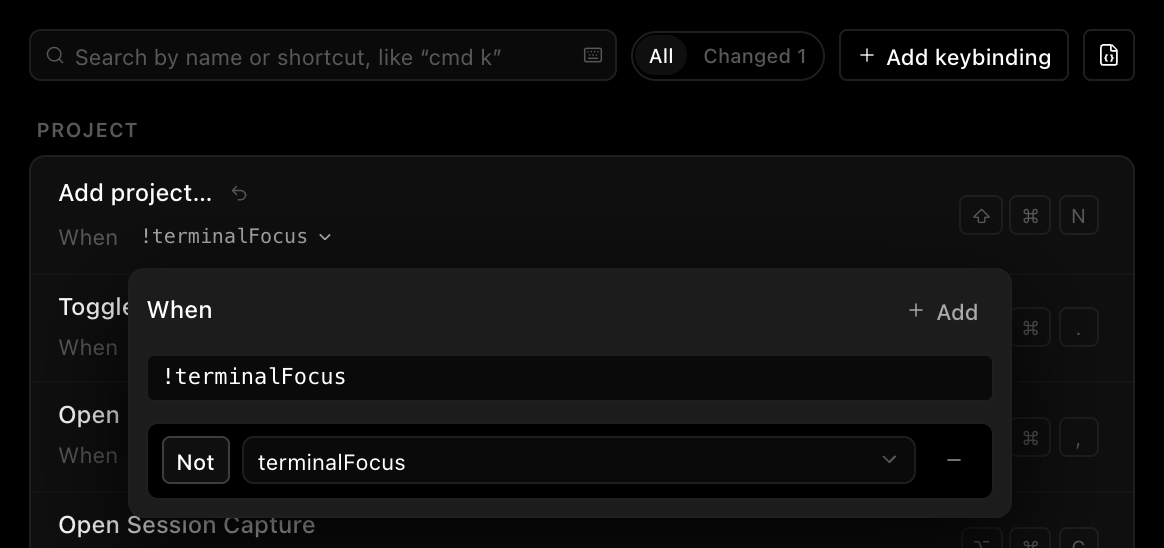
Each shortcut has a When condition under its name. Always means it works everywhere. Click the condition to change it. Pick a common one such as Not in the terminal, type an expression such as !terminalFocus, or build one with + Add: a condition, or a group of conditions joined by and or or. Use Not to flip a condition. Changes save as you make them.
A condition belongs to the command, so it applies to every shortcut that command has.
An expression joins variables with ! (not), && (and), || (or) and parentheses. The variables are:
| Variable | True while |
|---|---|
terminalFocus | the terminal has the keyboard |
chatFocus, editorFocus, knowledgeFocus, pdfFocus, canvasFocus, browserFocus | that kind of tab is active in the focused split |
inputFocus | you're typing in a text field |
knowledgeOpen | Knowledge is the active tab |
modelPickerOpen | the model picker has focus |
isMac, isWindows, isLinux | Atlas is running on that system |
For example, set the command palette to !terminalFocus and ⌘K stops opening it while the terminal has focus.
Some shortcuts only exist inside one panel, such as find in the terminal or save in Knowledge. Their condition can narrow where they work, for example terminalFocus && !inputFocus. It can't move them to another panel. If a condition could never be true there, Atlas shows a warning beside it.
See Power user for the default shortcuts.
Privacy
- Share usage data sends privacy-preserving usage data to help improve Atlas: app launches, which agents and tools you use, how many files a turn touched, token counts and crashes. It never includes your prompts, code, file paths or keys. It is on by default; turn it off to stop sending.
- Link usage data to my account attributes that data to your Atlas account while you are signed in. Turn it off to stay anonymous when signed in.
- Atlas logs records Atlas's own events in the Logs tab, which helps when you report a problem.
Settings file shows where config.toml lives, whether it loaded cleanly, and any keys in it Atlas does not recognize, such as a typo. Open opens it in your editor. Recreate replaces it with a fresh, fully commented file and keeps your old one beside it as a backup.
Updates
- Automatic updates checks for a new version in the background. On macOS and Windows it also downloads it; on Linux, update through your package manager or the release page.
- Check for updates checks now, whatever the automatic setting.
- Keep Atlas Agent's plugin catalog up to date lets Atlas Agent fetch OpenAI's curated plugin catalog when it starts. It is off by default, because it is a network request on every launch.
Library
Agents
Your agents are listed on the left: Atlas Agent, the agents you installed from the ACP registry, and any found on your PATH. Pick one to see its settings on the right. + Add agent browses the registry. A number next to Agents in the sidebar counts installed agents with an update waiting.
An agent's settings open with its name, version and whatever needs doing, such as Update or Turn on. Below that:
- Setup: optional sign-in details. Leave them empty to sign in the agent's own way.
- Permissions (Atlas Agent only): how far it can reach beyond your code. Both are on by default, and every action shows in the session and in the Logs tab.
- Let Atlas Agent navigate the app: it can open files at a line, switch tabs and panels, fill in a message, and type a command into a terminal for you to run. It never switches projects, sends a message for you, or presses Enter.
- Let Atlas Agent act in your organization: in a project bound to the cloud, it can read your organization's recorded sessions, comments, members and conversations, and act there as you. Anything that reaches another person asks you first.
- Defaults: the mode and options a new session with this agent starts with. They are the ones it offered in its last session, and picking one in a session changes it here too.
- Runtime: the executable Atlas starts and the arguments it adds. Atlas Agent runs inside Atlas and updates with it.
- Environment: variables for the agent's process, such as an API key or a base URL. Mark one sensitive to keep it in the keychain.
- Models: star, reorder and hide models to shape the composer's model picker, or add a custom model by name. Atlas sends it to the agent as is, and the agent decides whether to accept it.
- About: where it comes from and what it supports.
Under the list, All agents holds what applies to every agent:
- Let agents search code with Atlas: agents get Atlas's code search, which respects
.gitignoreand never reads secret files such as.env. Turn it off and they use their own tools instead. - Favorite models shows how many models you starred in the composer's model picker, and clears them.
- Model pricing fetches per-model prices from models.dev, used for cost estimates and shown in the model picker. Atlas refreshes them on launch.
Provider keys lists your own API keys. Atlas uses them for a few features:
- asking about a recorded session from the timeline
- the Provider option for memory's handoff summary and extraction (see Memory)
- external agents that read a provider's key from the environment
Each key is an export line in the shell profile shown under New keys go to, and Atlas reads it back from your environment. Atlas keeps no separate copy of your keys. A key set somewhere Atlas can read but not edit appears read-only.
Atlas Agent does not use these keys; it runs on your Atlas account. See AI access & spend.
Skills
Manage skills and packs. See Skills.
Layouts
Apply a ready-made arrangement of panels and tabs: Focus, Develop, Terminal or Review. Each one puts the session first. Press ⌘⌥L anywhere to switch layouts without opening Settings. See Rearrange the window.
About
Shows the version of Atlas you are running.
Next
- Configuration file: every key in
config.toml - Power user: move through Atlas from the keyboard
- Skills: install reusable instructions
- ACP registry: manage coding agents