
Remote control
Watch and steer a live agent session from a browser or your phone, and bring teammates in.
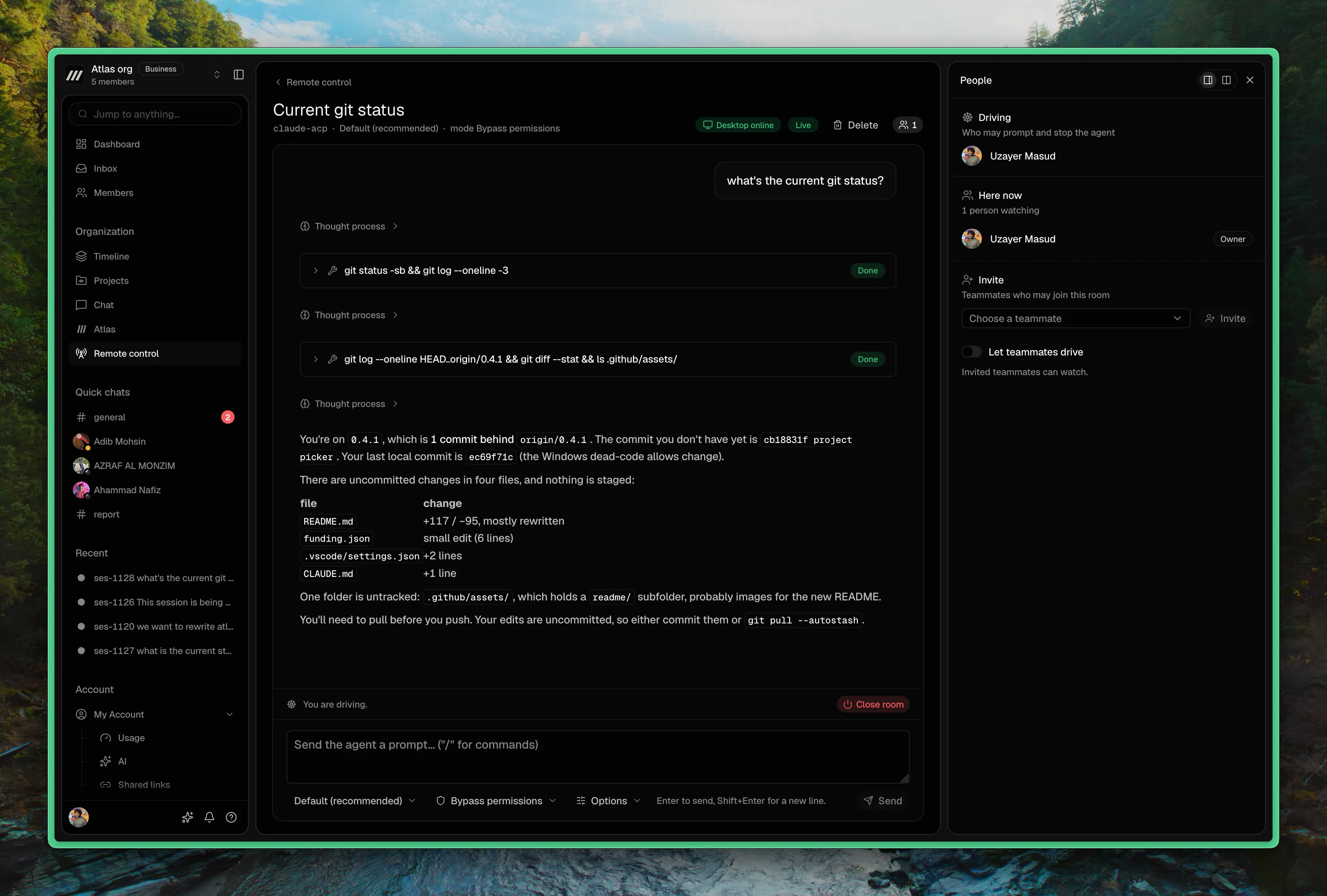
Remote control puts a live agent session from the desktop app into a room you can open anywhere. From the web app, on another computer or on your phone, you watch the session as it happens and can prompt it, stop it, or switch its model and mode.
The agent keeps running on your desktop, with your files, credentials and spend. The room only carries the session to you and back.
A room belongs to you, not to your organization. You need an organization only to invite teammates.
This is not Remote Runs in shared threads, where a teammate's desktop runs one prompt for you.
Start remote control
- Open Details in the session's title bar.
- Under Remote control, select Start remote control. It becomes available once the agent has connected.
A toast says Remote control is on, with Copy link for the room's viewer link.
A pill appears in the title bar with the room's state (Connecting, Live, Offline or Ended) and how many people are watching. Select it to open the room's panel: who is driving, who is here, invites, the link and Stop RC.
While the room is open, the session keeps running even if you close its tab or switch projects.
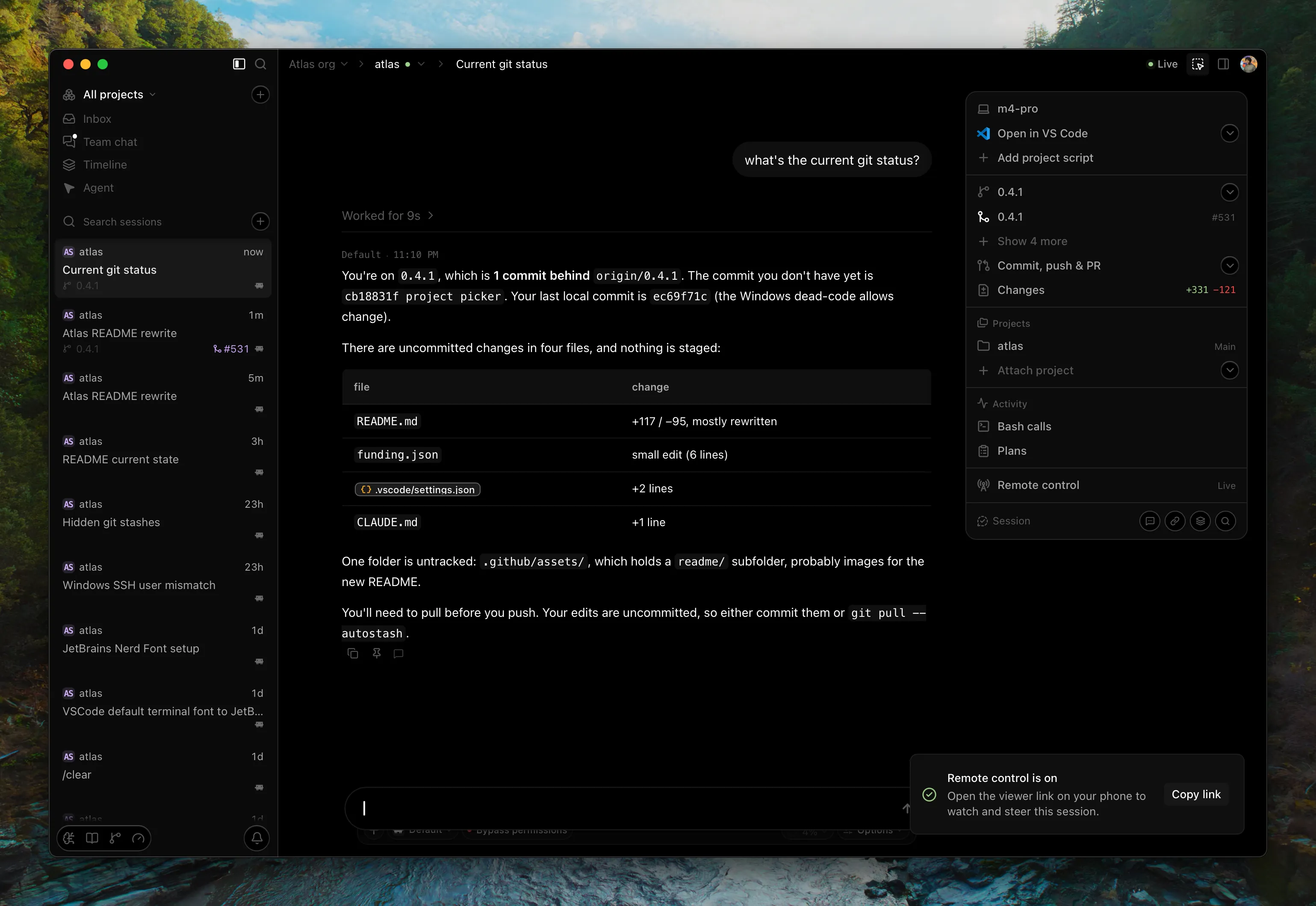
Open the room on the web or your phone
Open the viewer link in any browser and sign in with the same account. On your phone, open it in the phone's browser: the room page is built for a phone screen. Remote control is not in a native phone app.
Where remote control is turned on for your organization, the web app's sidebar also has Remote control. It lists your rooms and the ones you were invited to, grouped under Just you or Shared with the organization, each marked Live or Desktop offline.
In a room you can:
- read the session live: prompts, responses, tool calls and the plan
- type a prompt and select Send, or type
/for the agent's commands (/queuewaits for the running turn to finish) - select Stop to stop the running turn
- change the model, the mode and the agent's Options
Sending prompts and changing settings need the seat (see Who drives).
A few things stay on the desktop, for everyone including you:
- Permission prompts. The room shows them as Waiting for approval on the desktop.
- Modes that let the agent act without asking, such as bypass or full-access modes. They show as Desktop only.
Who drives
One person drives at a time. Only the driver can send prompts or change the model, mode or options. You drive when the room starts.
When someone else drives, your desktop composer is locked and says they are driving from remote control. Select Take over there, or Take back control in the room's panel, to get the seat back. On the web, the owner's button is Take over, and a teammate who is driving can Hand back.
As the owner you can always Stop the running turn from the web, whoever is driving.
Invite teammates
To invite people, the room has to be shared with an organization. When you start a room, Atlas shares it with your active organization, if remote control is turned on for that organization. Otherwise the room opens just for you and a toast says so.
Remote control for an organization is turned on by Atlas. Ask Atlas support if you want it.
If you started the room before choosing an organization, open the room's panel and select Share under Invite. A room is shared once and stays with that organization.
To invite someone, choose them under Invite (Choose a teammate) and select Invite. No email is sent: they open the viewer link, or find the room under Remote control in the web app. Withdraw an invite from the same list.
Only people you invite can open the room. Being in the organization is not enough.
What invited teammates can do
Let teammates drive sets this for everyone you invite. It is off when a room starts.
- Off: teammates watch. They see the session, who is here and who is driving.
- On: teammates can also Ask to drive, and you can hand them control. While driving, they can prompt, stop the turn, and change the model and mode. Options other than model and thinking settings stay Owner only.
Turning Let teammates drive off while a teammate drives gives the seat back to you.
Accept requests to drive
A teammate selects Ask to drive. The request appears in your desktop composer with Allow and Decline, in the room's panel, and on the room page in the web app with Approve. Whoever is driving can answer too.
An unanswered request lapses after a minute. After a decline, the teammate waits 30 seconds before asking again.
Turn off Accept requests to drive to decline every request as it arrives, including any already waiting. You can still pick someone yourself: under Here now, select Hand control to next to their name.
Remove under Here now disconnects someone, and they can't rejoin for 10 minutes. Their invite stands, so withdraw it too to keep them out.
When the desktop goes away
- The connection drops. The pill shows Offline and the room shows Desktop offline. Nothing can be sent until the desktop reconnects, which it does on its own.
- The app quits or restarts. Atlas does not reconnect the room. It waits for the desktop for an hour by default (the room page shows when it ends), then ends. Open the session and select Start remote control again to bring it back.
- The session ends, for example because the agent stopped. The room ends with it.
- You sign out, or sign in as another account. Every room this desktop hosts ends, and the sessions keep running.
End or delete a room
Stop RC in the room's panel, or Close room in the web app, ends the room for everyone. The session keeps running on your desktop. Start remote control on the same session later and the same room comes back, with the same link and invites.
Delete room… on the desktop, or Delete in the web app, ends the room and erases it. The link stops working and the invites are gone. Starting remote control on that session again makes a new room with a new link.
Once a room ends, its panel says The room is closed. Select Dismiss to clear the pill.
If a session is deleted from the timeline, its room is erased with it.
Who can see a room
- A room shared with no organization: only you, on any device signed in to your account.
- A shared room: you and the teammates you invited. Organization admins can't open it unless invited.
- Redaction happens on your machine. Atlas scrubs secrets such as API keys and tokens from the session before it reaches the room.
- Prompts sent from the room show who typed them, on every screen.
- Remote control is separate from the timeline. Starting a room doesn't put the session on the timeline, and works whether or not the project records sessions.