
Ask Atlas
Atlas, your organization's own agent. Ask it about your team's work, have it act for you with your approval, research a question in depth, and run loops.
Atlas is your organization's own agent. Ask it about your team's recorded sessions, projects, comments and chat, and it answers with links to what it found. Ask it to do something, such as message a teammate, and it drafts the action for you to approve.
Atlas runs on Atlas's servers, not on your machine, and it has no access to your repository. Your sessions with it are kept for you alone, and you reach the same ones from the web app and the desktop app.
It's not Atlas Agent, the coding agent that works in your project. Atlas Agent edits files and runs commands on your machine. Atlas answers questions about the organization and acts in it.
Turn it on
Atlas is off for an organization until Atlas support turns it on. If you open it and see Atlas is not on for this organization, an admin asks Atlas support to turn it on.
Once it's on, an admin can switch it off for everyone with the Atlas switch in the web app's AI settings. Your sessions with Atlas and what it remembers about you are kept while it's off.
Every question is billed to your organization's AI budget, and each person has a daily number of questions. The count shows at the top of the Atlas page, as "12 of 200 today".
Open Atlas
In the web app:
- Atlas in the sidebar, under Organization, opens the Atlas page: your sessions with Atlas on the left, the open one on the right.
- Ask Atlas (the sparkle button beside the notification bell), or ⌘J (Ctrl J on Windows and Linux), opens a panel over whatever page you're on. Its header docks it to the side, at half width, or floats it over the page. Open in Atlas moves the session to the Atlas page.
- Ask Atlas about this on an inbox row opens the panel with a question about that comment already written, for you to edit and send.
In the desktop app:
- ⌘⌥A, or Toggle Ask Atlas in the command palette, opens Atlas in the side panel beside your session. Each session with Atlas is a tab along its top.
- Agent in the sidebar opens Atlas full page, with your history listed under Pinned and Recents.
- Minimise to a floating chat keeps a session floating over the bottom-right of the window, and Full screen gives it the full page.
The desktop app needs you signed in, with a synced organization selected.
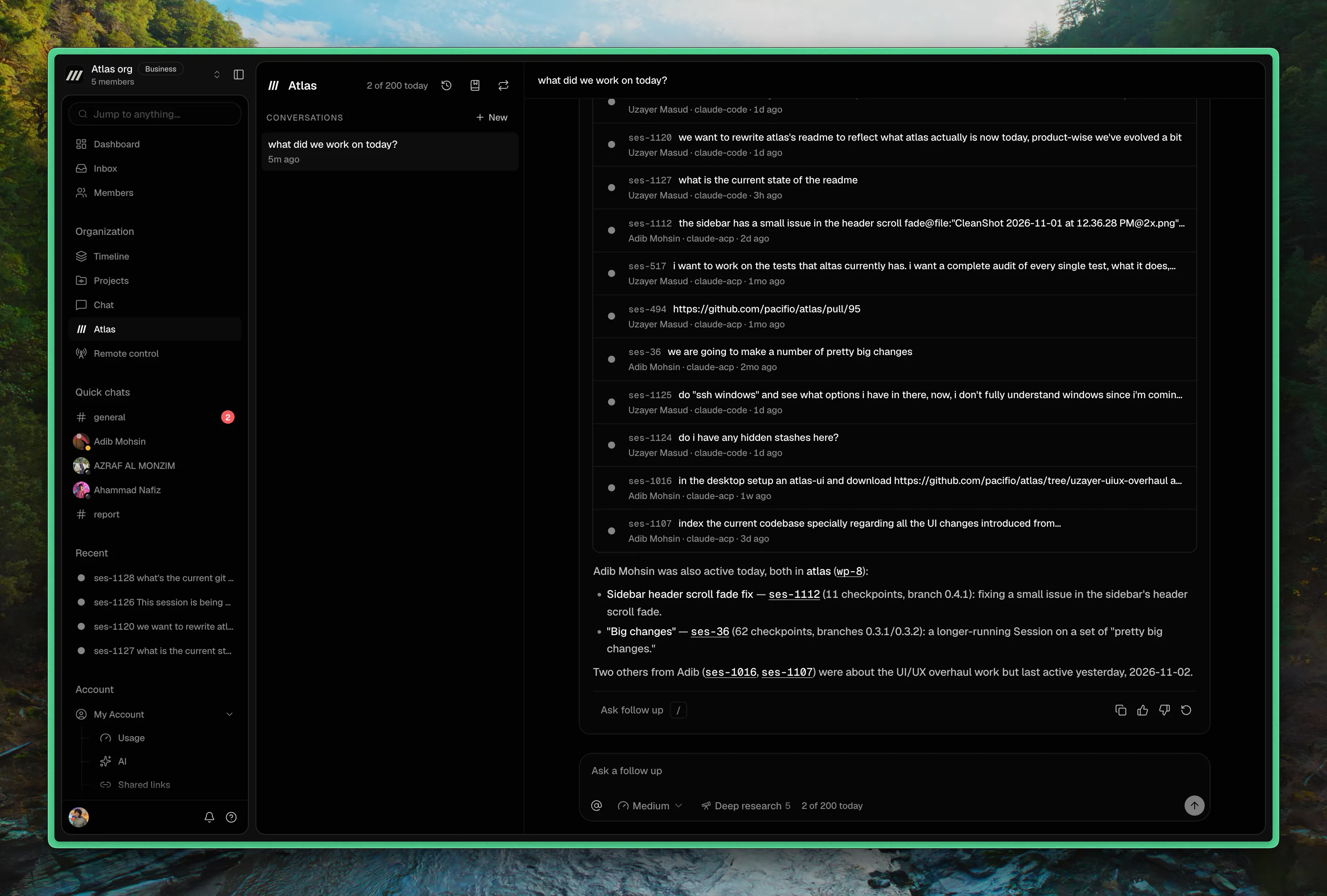
Ask a question
Type a question and press Enter. ⇧Enter adds a line.
- "What did I work on this week?"
- "What is the team working on today?"
- "Which of my sessions have open comments?"
- "Which session touched
auth/session.ts?"
Atlas reads only what you can read yourself. A restricted project you're not in, or a channel you haven't joined, is as closed to Atlas as it is to you. In the web app it also knows which page you asked from, so "what's going on here?" means that page.
It answers with links: sessions, checkpoints, comments, people and messages appear as cards that open where they live. A reference it couldn't check against what it read isn't linked, and the answer says so.
Under each answer:
- Copy copies it.
- Good answer and Bad answer rate it.
- Regenerate asks again.
- Ask follow up quotes that answer above the composer for your next message. Press / to follow up on the latest one.
When Atlas stops on a limit, such as an answer that ran too long, Continue picks it up. Stop ends an answer early.
Delete a session from the list with Delete conversation. Everything Atlas said in it goes, but a record of anything Atlas did for you stays in the activity log.
Mentions
Type @, or select the @ button, to point Atlas at something specific. The picker offers people, channels and DMs, projects, sessions, chat messages, your earlier sessions with Atlas, remote control rooms, loops, facts and comments.
Paste a link from the web app, or a handle such as ses-12, and it becomes a mention once Atlas finds it.
A mention names a thing. It doesn't grant access. Atlas still opens it as you, so a mention of something you can't read gets you nothing.
Effort
The effort picker beside the @ button sets how hard Atlas works on your next message:
| Level | What it does |
|---|---|
| Low | Quick answer from a few lookups. |
| Medium | Balanced. Checks the main sources. The default. |
| High | Thorough. Follows more leads. |
| Max | Slowest. Thinks hardest and reads widest. |
Each level shows how long it usually takes in your organization. Your pick becomes your default everywhere, in the web app and the desktop app alike. Every level counts as one question against your daily number.
Deep research
For a question that needs a long, cited answer, turn on Deep research beside the effort picker and ask. The number on the button is how many you have left today.
Atlas writes a short plan of sub-questions, researches several at once, then writes a report with citations. It only reads: during research it never sends, posts or changes anything. It can take up to 30 minutes.
While it works, the session shows the plan as a checklist, the current phase and the time left. Cancel stops it and has Atlas write up what it found so far, marked Partial.
Research runs in the background, so you can close the page, quit the app, or keep asking in the same session. When it's done:
- the Research report lands in the session, with its plan and sources folded away under Plan and sources
- the web app's inbox lists it under From Atlas, and your notifications say Atlas finished your research
- the desktop app shows "Deep research is ready", as a notification if the window is in the background
Your daily allowance resets at midnight UTC.
Have Atlas act for you
Atlas can:
- send a message to a person or a channel
- create a channel
- reply to a comment on a session, or resolve or reopen a comment thread
- draw a diagram on a new page in a conversation's Space
- propose a fact or a loop
Nothing happens until you approve it. Atlas shows an approval card with the exact text, who it goes to, who it notifies and who will be able to see it. Some cards let you edit the text or untick recipients first.
- Confirm carries it out.
- Decline refuses it. Tell Atlas why (optional) lets you say what to change.
The card also warns when the text draws on something its readers can't see, such as a restricted project, or on content from outside the team, such as a guest's comment.
A message Atlas sends appears under your name, marked via Atlas.
Atlas never invites people, creates share links, erases sessions, or changes the organization's settings or anyone's role.
See what Atlas did
Activity (the clock button at the top of the Atlas page) lists every action you approved, with Done or Not confirmed for each. Admins can switch to Everyone for the whole organization's activity, without the text of anyone's sessions.
Facts
Facts are what your team has confirmed as true: "billing runs on Stripe", "release branches are cut on Thursdays". Atlas looks them up when it answers.
When Atlas finds something worth keeping, it proposes a fact on an approval card, with the records it rests on as sources. Approving the card confirms the fact.
Open Facts (the bookmark button at the top of the Atlas page) to see them:
- Confirmed lists the team's facts. Search them with Search Facts.
- Proposed lists proposals nobody has confirmed yet. Confirm one to make it a fact.
Each fact shows its sources and who can read each one. A fact reaches only the people who can open every one of its sources: Atlas checks them again as you before it shows or uses a fact, and leaves out any fact citing something you can't open. You can't confirm a proposal whose sources you can't open.
Confirming a fact on the same subject as an older one replaces the older one.
Retire takes a fact out of use, with a reason. Whoever confirmed a fact can retire it, whoever proposed a waiting one can retire that, and admins can retire any. A fact that cites a session that's later erased is retired automatically.
What Atlas remembers about you
Atlas keeps a short personal memory: your preferences, things you're following up on, and notes you ask it to keep ("remember that I own the billing service"). The session says when it remembers or forgets something.
Only you can see it. Find it in the web app's AI settings, under What Atlas remembers about you, and delete anything you'd rather it didn't keep. A deletion takes effect from Atlas's next answer, in every session.
Something new Atlas remembers is used from your next session with it. Atlas won't store text that looks like a password or key.
Loops
A loop is an instruction Atlas runs for you on a schedule or when something happens, posting one result each time: a morning digest to you, or a note to a channel when a checkpoint lands.
Loops are off for an organization until Atlas support turns them on, separately from Atlas itself. Where they're off, there's no Loops button on the Atlas page, and the desktop app says they're turned off.
Create a Loop
Open Loops (the repeat button at the top of the Atlas page, or the Loops switch on the desktop app's full page) and select New Loop:
- Name, and What to do each time: the instruction, in plain words.
- When it runs:
- On a schedule: Every hour, Every day or Every week, at a time in a Time zone you pick.
- When something happens: a session ends, a checkpoint lands, someone comments on a session, or someone posts in a channel. Narrow it to one project with In. Activity within five minutes is handled in one run.
- Where the result goes: Send me a message, Send a person a message or Post in a channel.
- Create Loop.
You can also ask Atlas for one in a session ("every Monday at 9, send me what the team shipped last week"). It proposes the loop on an approval card that spells out when it runs, where the result goes and what it reads, and confirming creates it.
What a Loop can read
A loop runs as you, with your access at the moment it runs, but it reads only what its audience can see. The form shows the rule as you pick where the result goes:
- A message to you: it can use anything you can see, including what Atlas remembers about you.
- A message to someone else: it reads only what everyone in your organization can see.
- A channel: it reads only what everyone in that channel can see.
You can only post a loop's result in a channel you're in.
Manage Loops
Each loop shows its schedule or trigger, where it posts, and how many times it has run today. Pause, Resume and Delete are on each row. Deleting a loop leaves what it already posted.
A loop that runs too many times in a day is Paused for today and starts again the next UTC day.
Admins also see Everyone, every loop in the organization, and can pause any of them. A loop belongs to the person who made it, and is deleted when they leave the organization.
Usage
The web app's Usage page has an Atlas section: questions, loop runs and actions, and what they cost. Admins see the whole organization, everyone else their own. See AI access & spend.
Next
- Atlas Agent: the coding agent that works in your project
- AI access & spend: budgets, and what Atlas costs
- Web app: the rest of the organization in a browser