
Spaces
A shared canvas attached to a conversation.
Every team chat conversation has a Space: a canvas of pages that everyone in the conversation edits together, live. Use it to sketch an architecture, plan a release, or lay out a bug's moving parts while you talk about it.
Atlas Agent can draw on a Space too, so you can ask it to turn a session or a discussion into a diagram the whole conversation can see and edit.
Not to be confused with the project canvas. The command palette's New space entry opens a canvas saved inside the current project (.atlas/canvas.json). That board is local to your machine and not shared. This page is about the conversation Space.
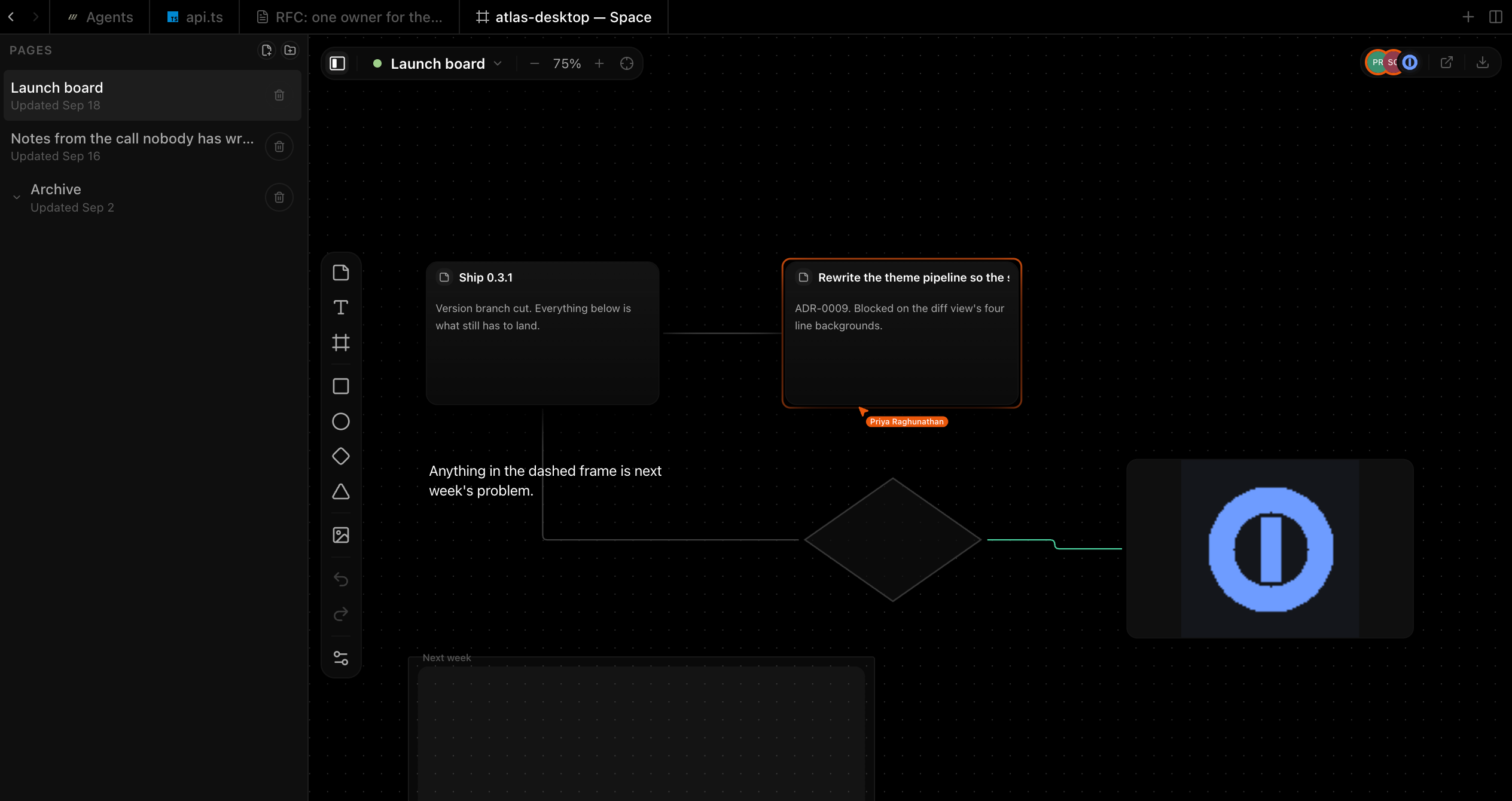
Open a Space
- Open a conversation in team chat.
- Click Spaces at the right of the tab strip under the conversation header.
The Space opens as a full page named after the conversation, in place of the session, which keeps running. Press Esc or select the back arrow in the bar to return to the session; see Destinations. In the web app the Space is at app.tryatlas.cc/space/…; click Open in web in the Space's header to go there.
Only the members of the conversation can open its Space.
Draw
The toolbar holds the things you can place:
- Note: a card with a title and a body
- Text: a free text box
- Group frame: a frame that holds other nodes
- Rectangle, Ellipse, Diamond and Triangle: one button for each shape
- Insert image or video: PNG, JPEG, GIF, WebP, MP4 or WebM. You can also drop or paste images onto the canvas.
Drag from a node's handle to another node to connect them. Undo with ⌘Z and redo with ⌘⇧Z. Use Dock position to move the toolbar to the left, the bottom or the right.
Every change is shared as you make it. If the connection drops, your edits are kept and sent when the Space is back.
Pages and folders
A Space holds as many pages as you need. Use the pages sidebar to add a New page or a New folder, rename pages, nest them, and switch between them. The last page of a Space can't be deleted.
Work with others
Each person on the page shows as an avatar in the header, and their cursor shows on the canvas with their name.
Click a teammate's avatar to follow them: your view moves with theirs. Press Esc to stop.
In the web app you can also start a voice call inside the Space. See Calls.
Export
Click Export canvas in the Space's header to save the current page as PNG, JPEG, SVG or PDF.
Let Atlas Agent draw
Atlas Agent can create a page in a conversation's Space and draw a diagram onto it: notes, text, shapes and groups, connected by edges and laid out for you. Ask in plain words, for example "draw the sync flow from this session as a diagram in the #backend Space".
- Turn on Let Atlas Agent act in your organization in Settings first.
- You must be a member of the conversation.
- A write replaces everything on that page, so ask for a new page when you want to keep what is there.
- Drawing doesn't ask for approval, because it reaches no one and anyone in the conversation can see, change or undo it. Like every organization action, it is recorded in the Logs panel.
Next
- Team chat: the conversations Spaces belong to
- Atlas Agent: what else it can do in your organization